 TektonAI
Label your fleet with QR codes and track it from your phone
Print QR or Code 128 labels for your parts, scan them with your phone and link an unknown code to the right part.
Before you start: create a TektonAI projectThe instructions to paste into Claude or ChatGPT, once and for all.
A project keeps instructions that apply to all its conversations. Create one for TektonAI: in every conversation, your assistant knows what our tools do and how you work, without you repeating it.
In Claude (tested)
- In Claude's left sidebar, open Projects, then Create project. Name it, for example “TektonAI”.
- In the project, open the project instructions and paste the text below. Replace the parts in brackets.
- Open a conversation in this project. In the conversation's tools menu, check that TektonAI is turned on.
On a Claude Team or Enterprise plan, share the project with your colleagues: they all start from the same instructions.
In ChatGPT (not tested)
- In ChatGPT's left sidebar, create a new project.
- In the project settings, paste the text below into its instructions.
TektonAI must first be added to ChatGPT: see Connect your AI assistant.
In Claude Code
Paste the text into the CLAUDE.md file of the folder you work in.
The instructions to paste
You work for [your company name], a construction company in [city, province], with the TektonAI tools connected to this conversation.

What the TektonAI tools do:
- Scaffold prepares 3D scaffold plans from the dimensions of the structure: dimensioned A3 PDF plan, CAD plan (DXF), 3D model (STEP), bill of materials in Excel and CSV, and the load takedown. It revises an existing plan from its drawing number.
- Inventory keeps track of everything our company owns: quantities available, rented out, in for repair and out of service, by location, and every movement with the employee's name. It imports our parts list and reads barcodes.
- Scaffold plans use the parts of our Inventory when we ask.
- Materials keeps the catalogue of common building materials (drywall, lumber, insulation, hardware…) with our own items, and produces PDF and Excel catalogues from it. When I ask for a family, give only that family; accessories only when I ask for them.

How to work with me:
- Answer in English, in plain words and site terms. Produce documents (plans, calculation notes, labels, slips) in English.
- Use the TektonAI tools for every plan, quantity or weight. Never make up a dimension, a quantity or a weight.
- Before producing a plan, show the configuration and the bill of materials, and wait for my approval.
- When a tool asks me a question through a form, let me answer it myself. Never choose the duty class (light, intermediate or heavy) for me.
- Leave plans at the “PRÉLIMINAIRE” (preliminary) status until I give you the names of the person who checked the plan and the person who approved it.
- For an import into Inventory, show the preview, let me choose the mode and wait for my confirmation: a click on the card, or the word “Import” that I type myself. Pass my message on exactly as I wrote it.
- Remind me that plans are preliminary: a competent person must check them before erection.
The same text is also at tektonai.app/en/project-instructions.md.
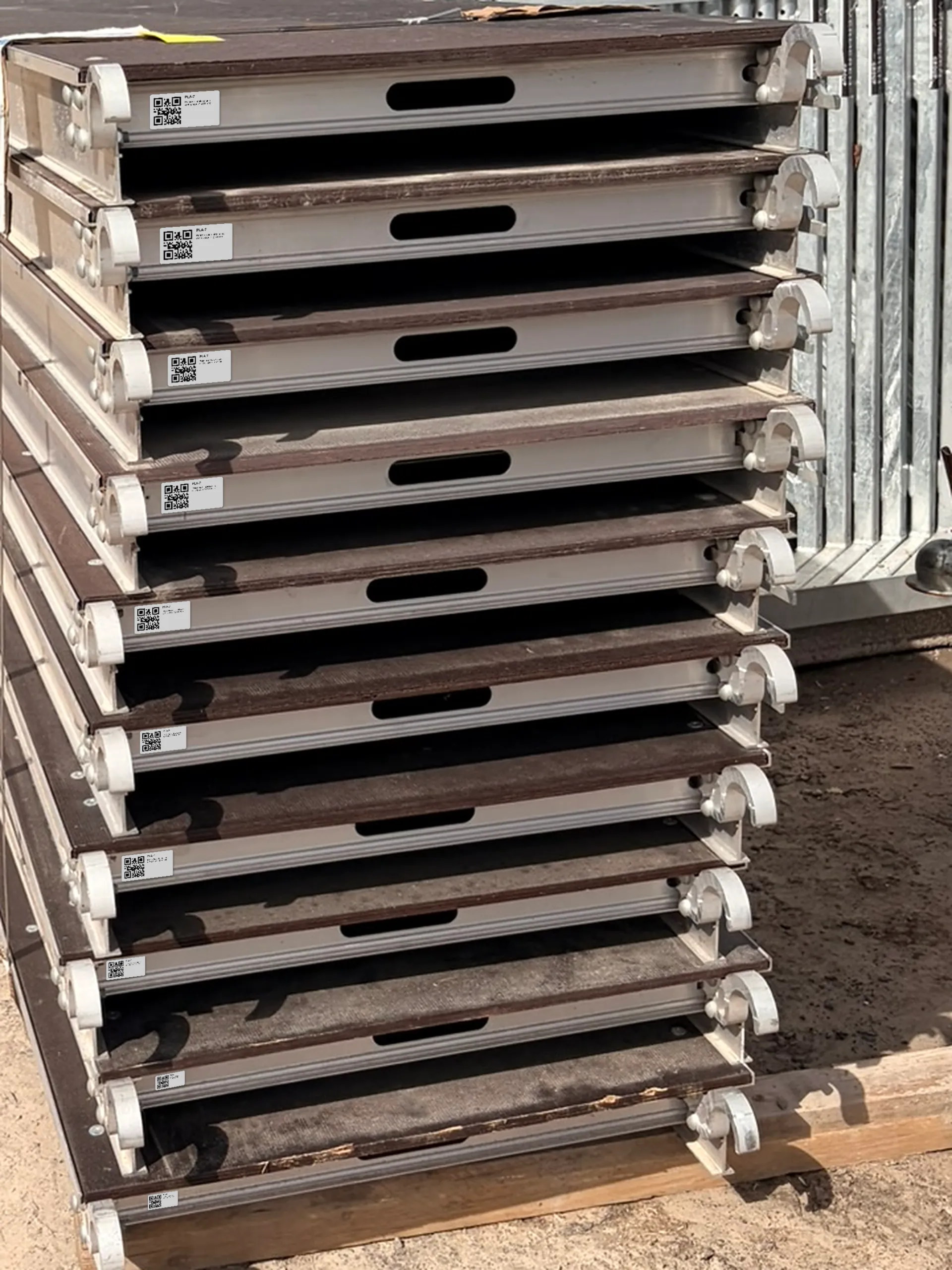
Example (montage): platforms of the same part carry the same code.
Put a label on every part: your crew scans the barcode with a phone and sees right away which part it is. This tutorial shows you how to:
- print Inventory’s labels;
- scan a barcode on site;
- record a stock movement from a label;
- link a code Inventory does not know yet to a part.
What you need
- Your parts in Inventory. See Import your inventory from Excel.
- Avery 5163 or 8163 label sheets: 10 labels of 4 × 2 in per Letter sheet.
Step 1: print the labels
Print the QR labels for our PLA-7 platforms.
You get a PDF to download. The link stays valid for one hour.
Each label carries:
- the barcode;
- the part number;
- its description.
By default, Inventory prints Code 128 barcodes. For QR codes, ask for “QR”, as in the example.
The printed code is your part number if it is 24 characters or less and has no accents or signs such as × or °. Otherwise, Inventory gives it a code that never changes and starts with RM-.
Print at 100%, without fitting to the page. Otherwise, the labels do not land in the boxes.
The footer of each sheet carries:
- the TektonAI reference;
- its check code;
- a verification QR code.
They prove that the sheet comes from TektonAI.
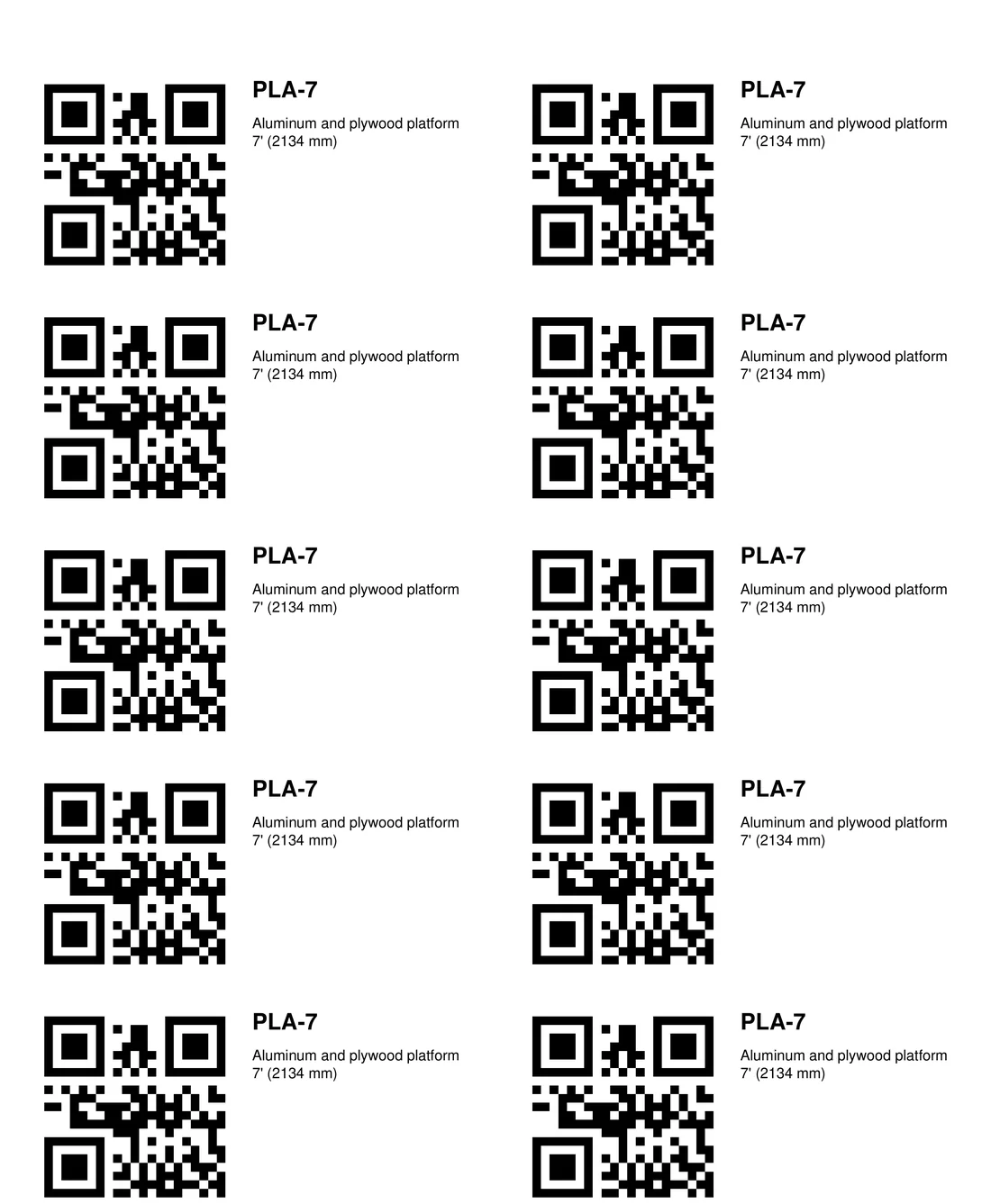
A QR label sheet as Inventory prints it, without the footer. Each QR code holds only the part number.
Step 2: scan a label with your phone
I want to scan barcodes with my phone.
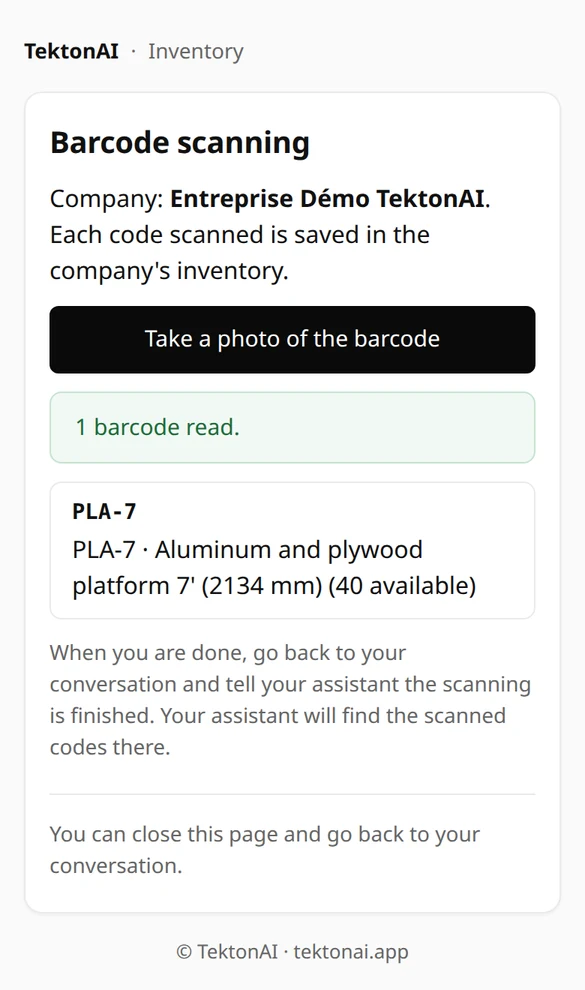
Your assistant gives you the link to a scanning page, valid for one hour. Open this page on your phone, then:
- take a photo of the barcode;
- or scan it live with the camera, if your browser allows it.
The page shows the part linked to that code.
You can also:
- scan the barcode with a barcode reader, or with a phone app that types the code into the conversation;
- enter the code manually in the conversation.
Wherever Inventory asks for a part number, you can give a barcode linked to that part.
If you send a photo in the conversation, only the digits printed under the bars are read reliably. To scan the bars themselves, use the scanning page.
Step 3: record a stock movement from the label
The platforms go to a site and come back: they go through a rental contract. First ask what you scanned, then open the contract:
What did I scan on my phone?
Open a rental contract for the 245 Example Street site: 20 of this part.
Inventory first replies with the list of scanned codes, with part PLA-7. It then opens the contract: the 20 platforms move to on-rent, and you can print the rental slip to sign.
The PLA-7 record then shows 20 available at “Cour principale” and 20 on rent. Every change is recorded in the log, with your name and the time.
A “check-out” takes parts out of stock for good: parts sold, used up or scrapped.
Step 4: link an unknown code
A package carries the manufacturer’s code (UPC or EAN), but Inventory does not know it yet? Link this code to the right part:
Link code 012345678905 to our PLA-7 platforms.
- A code points to one part only.
- A part can have several codes.
- If the code is already linked to another part, Inventory refuses and tells you which one.
Parts without a label
Some parts cannot carry a label: round parts (tubes, clamps…), parts that are too small and parts with no flat surface. For them:
- Stick the label on the bin, pallet, rack or bundle that holds them.
- Scan that single label.
- Give the number of parts, and say whether it is a receipt or a check-out. For a count, give the number available.
- Check the number on the card, then confirm.
Receive 50 clamps into the bin I just scanned.
A confirmation card shows the scanned code, the effect of the movement and the number. Nothing changes in the inventory until you confirm the number on the card.
Photograph a stack for a count
- Take only one photo per stack. Two overlapping photos count the same labels twice.
- Stand no more than 1.8 m (6 ft) from the stack, or 3.6 m (12 ft) with the phone’s 2× lens.
- Take the photo in good light.
- Turn all the labels to the same side.
Good to know
- Try your barcode reader before equipping the whole crew.
- Labels and the scanning page are in English or French. They follow the language you ask for in the conversation, otherwise your profile’s language.
- Removing a code from a part changes neither its record nor its stock.