 TektonAI
Import a manufacturer catalogue or a photo into Parts
Give your assistant a supplier's PDF catalogue or a photo of a list: it reads the parts, Parts · Remise shows you the effect, then you confirm the import.
Your situation is different? Import your parts list into your library
What you will get
The parts of a PDF catalogue or a photo in your library, without retyping a spreadsheet, with your confirmation for every import.
Before you start: create a TektonAI projectThe instructions to paste into Claude or ChatGPT, once and for all.
A project keeps instructions that apply to all its conversations. Create one for TektonAI: in every conversation, your assistant knows what our tools do and how you work, without you repeating it.
In Claude (tested)
- In Claude's left sidebar, open Projects, then Create project. Name it, for example “TektonAI”.
- In the project, open the project instructions and paste the text below. Replace the parts in brackets.
- Open a conversation in this project. In the conversation's tools menu, check that TektonAI is turned on.
On a Claude Team or Enterprise plan, share the project with your colleagues: they all start from the same instructions.
In ChatGPT (not tested)
- In ChatGPT's left sidebar, create a new project.
- In the project settings, paste the text below into its instructions.
TektonAI must first be added to ChatGPT: see Connect your AI assistant.
In Claude Code
Paste the text into the CLAUDE.md file of the folder you work in.
The instructions to paste
You work for [your company name], a construction company in [city, province], with the TektonAI tools connected to this conversation.

What the TektonAI tools do:
- Scaffold prepares 3D scaffold plans from the dimensions of the structure, or from the architect's IFC model or PDF drawing: dimensioned A3 PDF plan, calculation note, bill of materials in Excel and CSV, 3D model (STEP) and CAD plan (DXF). It revises an existing plan from its drawing number.
- Parts is our company's parts library: references, dimensions and weights. It imports our parts list.
- Scaffold plans use the parts of our Parts library when we ask.
- Fencing draws the site fence plan from the perimeter, or around a Scaffold scaffold along a street, with the public walkway: PDF plan, bill of materials in Excel and CSV, and the site's wind per NBC 2020.
- Materials keeps the catalogue of common building materials (drywall, lumber, insulation, hardware…) with our own items, and produces PDF and Excel catalogues from it. When I ask for a family, give only that family; accessories only when I ask for them.

How to work with me:
- Answer in English, in plain words and site terms. Produce documents (plans, calculation notes, catalogues) in English.
- Use the TektonAI tools for every plan, quantity or weight. Never make up a dimension, a quantity or a weight.
- Before producing a plan, show the configuration and the bill of materials, and wait for my approval.
- When a tool asks me a question through a form, let me answer it myself. Never choose the duty class (light, intermediate or heavy) for me.
- Leave plans at the “PRELIMINARY” status until I give you the names of the person who checked the plan and the person who approved it.
- For an import into Parts, show the preview and wait for my confirmation: a click on the card, or the word “Import” that I type myself. Pass my message on exactly as I wrote it.
- Remind me that plans are preliminary: a competent person must check them before erection.
The same text is also at tektonai.app/en/project-instructions.md.
Your suppliers send you PDF catalogues. Your parts lists are sometimes posted on the warehouse wall. You do not have to copy them into a spreadsheet: your assistant reads them and sends them to Parts · Remise, your company’s parts library. Nothing goes in without your confirmation.
The example follows Julie Exemple, of Entreprise Démo TektonAI. She adds the fences of her supplier, Fournisseur Démo, a fictitious supplier created for this example. The example was run in French; the answers below are described in English.
What you need
- A TektonAI account and your AI assistant, with a TektonAI project, as explained above.
- The document to read: a PDF catalogue, a photo, or a list pasted into the conversation.
For an Excel or CSV file, follow the tutorial Import your parts list from Excel instead.
Step 1: give the catalogue to your assistant
Attach the PDF to your message.
Here is our fence supplier's PDF catalogue. Add these parts to our library.
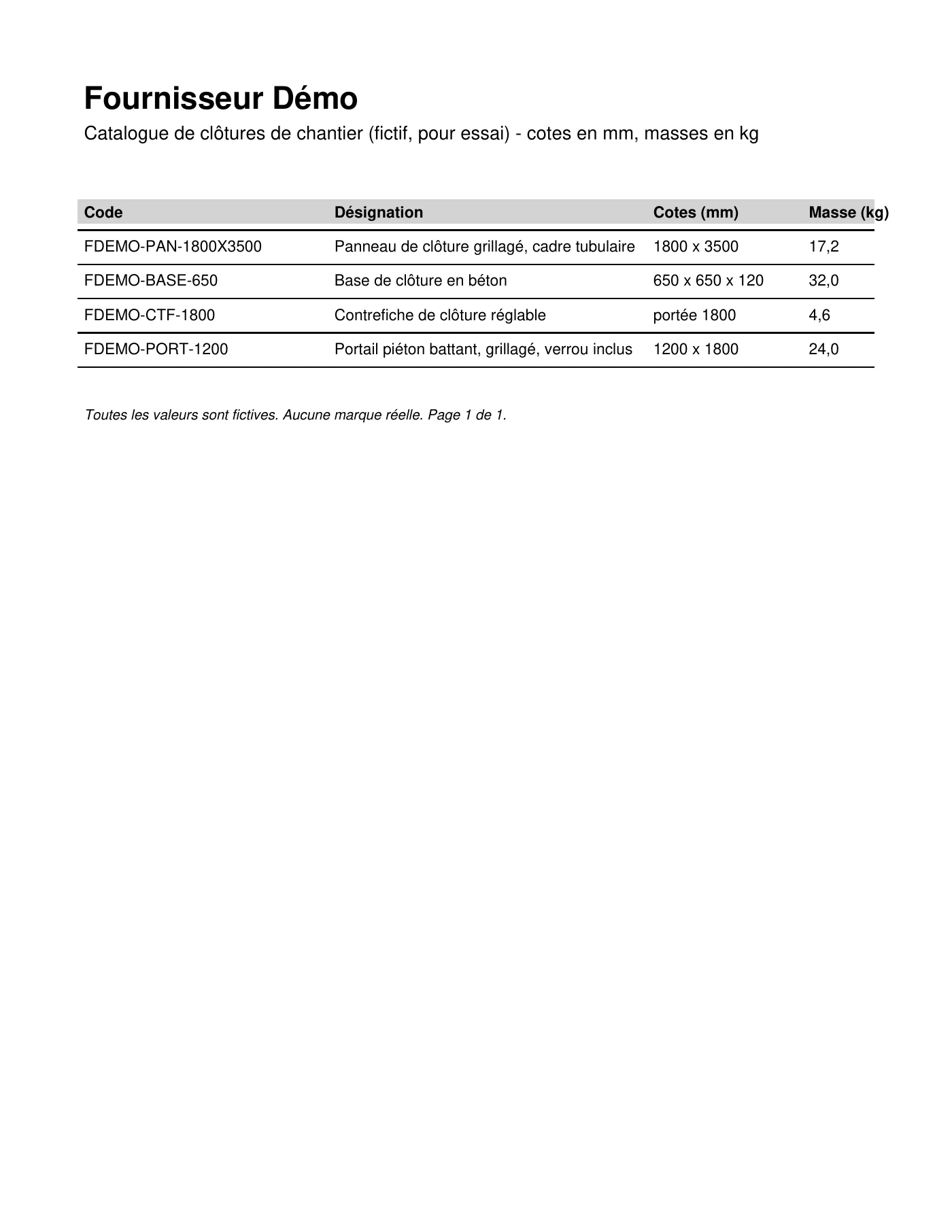
Your assistant reads the parts in the catalogue itself, then sends them to Parts, 200 parts at most per batch. Parts puts them in a batch and imports nothing yet: here, batch 5, with 4 parts and none ignored.
It worked when: Parts puts the parts in a batch and imports nothing yet.
Step 2: read the preview
Parts shows you what was read and the effect of the import:
- the 4 parts read by the assistant in the supplier’s catalogue, with the date and the name of the person who sent them;
- 4 new parts, none already in the library, no line ignored;
- the effect of the import: 4 parts created. A record already in Parts does not change.
Compare what your assistant read with the catalogue: the codes, the descriptions, the dimensions and the weights. A reading error is corrected before the import: tell your assistant.
It worked when: What your assistant read matches the catalogue: codes, descriptions, dimensions and weights.
Step 3: confirm the import
Parts prepares an import request. Nothing is imported until you confirm it yourself:
- if your app shows the “Import records into Parts · Remise” card, click Import;
- otherwise, type “Import” yourself in the conversation.
A click on the card is signed: the assistant cannot click for you. A written confirmation goes through the assistant, so it protects less than a click. Parts then logs your exact message, your name and the time. A vague answer is refused.
Julie confirms. Parts creates the 4 parts (FDEMO-PAN-1800X3500, FDEMO-BASE-650, FDEMO-CTF-1800 and FDEMO-PORT-1200), all 4 complete. The records that are not in the source do not change.
It worked when: The summary lists the parts created.
Step 4: add parts from a photo
A photo works the same way. Julie takes a photo of a parts list in the warehouse and attaches it to her message.
Here is a photo of the parts list posted in the warehouse. Add them.
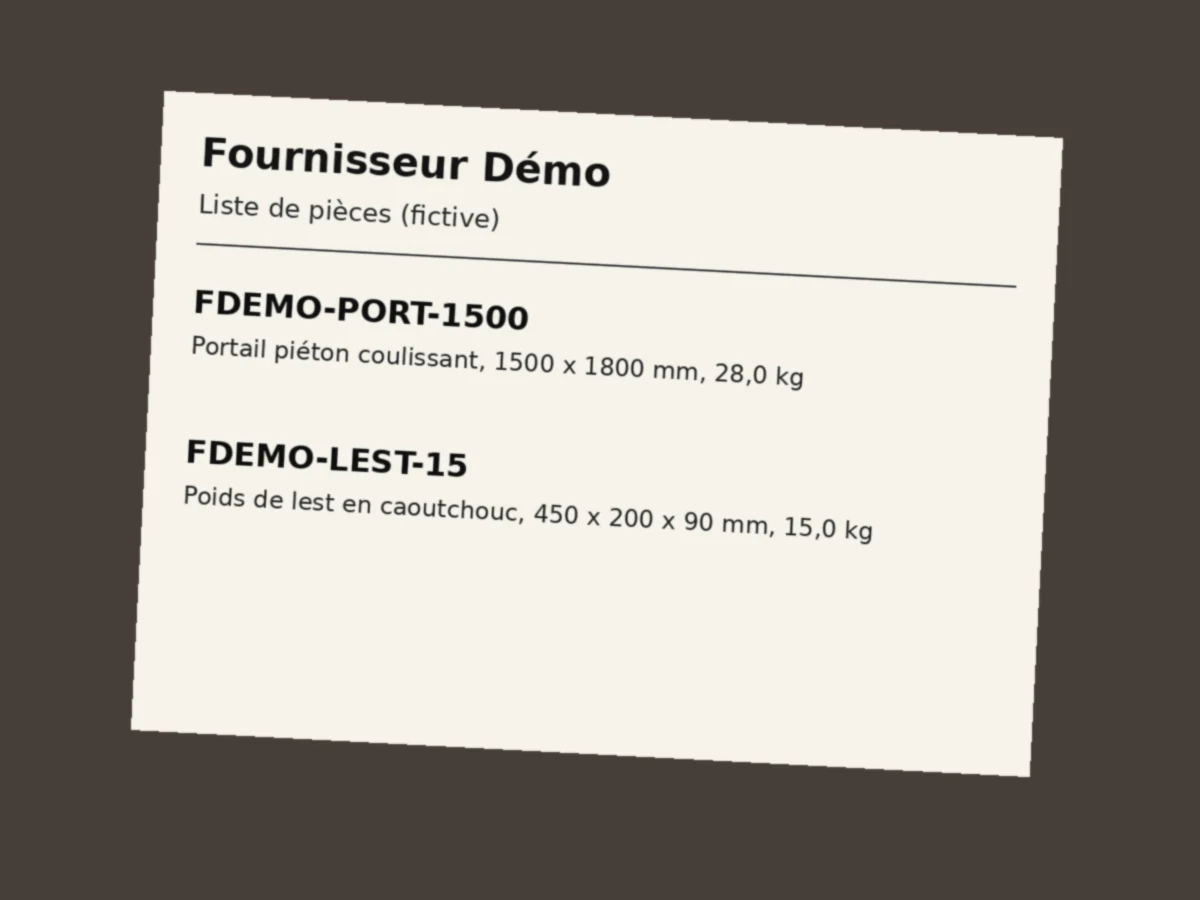
Your assistant reads the two parts in the photo. Parts shows the preview (2 parts created), then waits for your confirmation, as for the catalogue.
To import nothing, click Cancel on the card, or ask your assistant to cancel the request. Parts confirms that the request is cancelled and that nothing was imported.
It worked when: The request is imported, or cancelled with nothing imported.
Step 5: find the parts
Ask your assistant for the list of parts in your library. Your assistant lists the four parts of the catalogue, with their code, description, category, dimensions and weight. The two parts of the photo are not there, since Julie cancelled.
It worked when: The catalogue's parts are in your library.
Special cases
- You have a typed list: paste it into the conversation. Your assistant reads it the same way. Each part needs its code.
- Your catalogue has more than 200 parts: your assistant sends them in several batches, into the same lot.
- A part is already in your library: its record does not change.
- Your assistant does not see the tool: an administrator must give you access, on the Access page of the console. See Your team in TektonAI.
Good to know
- Your assistant says where each weight it reads comes from, for example the manufacturer’s data sheet. Without that detail, the weight is marked “declared”.
- No import deletes a record. A part already in your library keeps its record.
- Your Scaffold and Fencing plans can then use these parts. See Fencing · Palissade.
Download the files of this example
The real files the tool produced for this example. They are preliminary and serve as an example.
The example catalogue
The PDF catalogue from step 1, in French. Fournisseur Démo is a fictitious supplier, created for this example.