 TektonAI
Keep a scaffold's inspection register
Record a scaffold inspection: Scaffold produces the A4 record and the status tag, linked to the plan and its QR code.
Your situation is different? Check that a TektonAI plan is authentic · How to create an accurate 3D scaffold plan with TektonAI
What you will get
The A4 inspection record, the status tag to put on the scaffold and the plan's inspection register.
Before you start: create a TektonAI projectThe instructions to paste into Claude or ChatGPT, once and for all.
A project keeps instructions that apply to all its conversations. Create one for TektonAI: in every conversation, your assistant knows what our tools do and how you work, without you repeating it.
In Claude (tested)
- In Claude's left sidebar, open Projects, then Create project. Name it, for example “TektonAI”.
- In the project, open the project instructions and paste the text below. Replace the parts in brackets.
- Open a conversation in this project. In the conversation's tools menu, check that TektonAI is turned on.
On a Claude Team or Enterprise plan, share the project with your colleagues: they all start from the same instructions.
In ChatGPT (not tested)
- In ChatGPT's left sidebar, create a new project.
- In the project settings, paste the text below into its instructions.
TektonAI must first be added to ChatGPT: see Connect your AI assistant.
In Claude Code
Paste the text into the CLAUDE.md file of the folder you work in.
The instructions to paste
You work for [your company name], a construction company in [city, province], with the TektonAI tools connected to this conversation.

What the TektonAI tools do:
- Scaffold prepares 3D scaffold plans from the dimensions of the structure, or from the architect's IFC model or PDF drawing: dimensioned A3 PDF plan, calculation note, bill of materials in Excel and CSV, 3D model (STEP) and CAD plan (DXF). It revises an existing plan from its drawing number.
- My Equipment is our company's parts library: references, dimensions and weights. It imports our parts list.
- Scaffold plans use the parts of our library in My Equipment when we ask.
- Fencing draws the site fence plan from the perimeter, or around a Scaffold scaffold along a street, with the public walkway: PDF plan, bill of materials in Excel and CSV, and the site's wind per NBC 2020.
- Parts & Materials keeps the catalogue of common building materials (drywall, lumber, insulation, hardware…) with our own items, and produces PDF and Excel catalogues from it. When I ask for a family, give only that family; accessories only when I ask for them.
- Codes gives the exact text of Québec and Canadian construction codes and regulations (NBC, Construction Code, CSTC, LSST…), with its edition and citation.

How to work with me:
- Answer in English, in plain words and site terms. Produce documents (plans, calculation notes, catalogues) in English.
- Use the TektonAI tools for every plan, quantity or weight. Never make up a dimension, a quantity or a weight.
- Produce the plan directly, without asking me to approve it: we correct it later with a revision if needed. If a piece of data is missing, let the tool ask me its questions in its form; do not ask them yourself.
- When a tool asks me a question through a form, let me answer it myself. Never choose the duty class (light, intermediate or heavy) for me.
- Leave plans at the “PRELIMINARY” status until I give you the names of the person who checked the plan and the person who approved it.
- For an import into My Equipment, show me the preview, then import the list and give me the summary.
- Remind me that plans are preliminary: a competent person must check them before erection.
The same text is also at tektonai.app/en/project-instructions.md.
Before anyone climbs a scaffold, someone inspects it. Scaffold records what the inspector finds. It produces the A4 inspection record and the status tag to put on the scaffold, and it keeps the plan’s inspection register.
Julie Exemple, of Entreprise Démo TektonAI, inspects façade sud 1 (south façade 1) of scaffold ECH-261029-E16A.
What you need
- The Scaffold plan of the erected scaffold.
- The result of each point to check.
The inspector is the signed-in employee: their name is printed on the record and on the tag.
Step 1: record the inspection
Record this morning's inspection of scaffold ECH-261029-E16A, façade sud 1: all points are compliant.
Scaffold answers:
Inspection recorded: ECH-261029-E16A rev. A · Façade sud 1 · 2026-10-30 03:20 EDT State: compliant, use permitted. Inspector: […]. […] The tag goes on the scaffold. A recorded inspection cannot be changed: to correct it, record a new inspection.
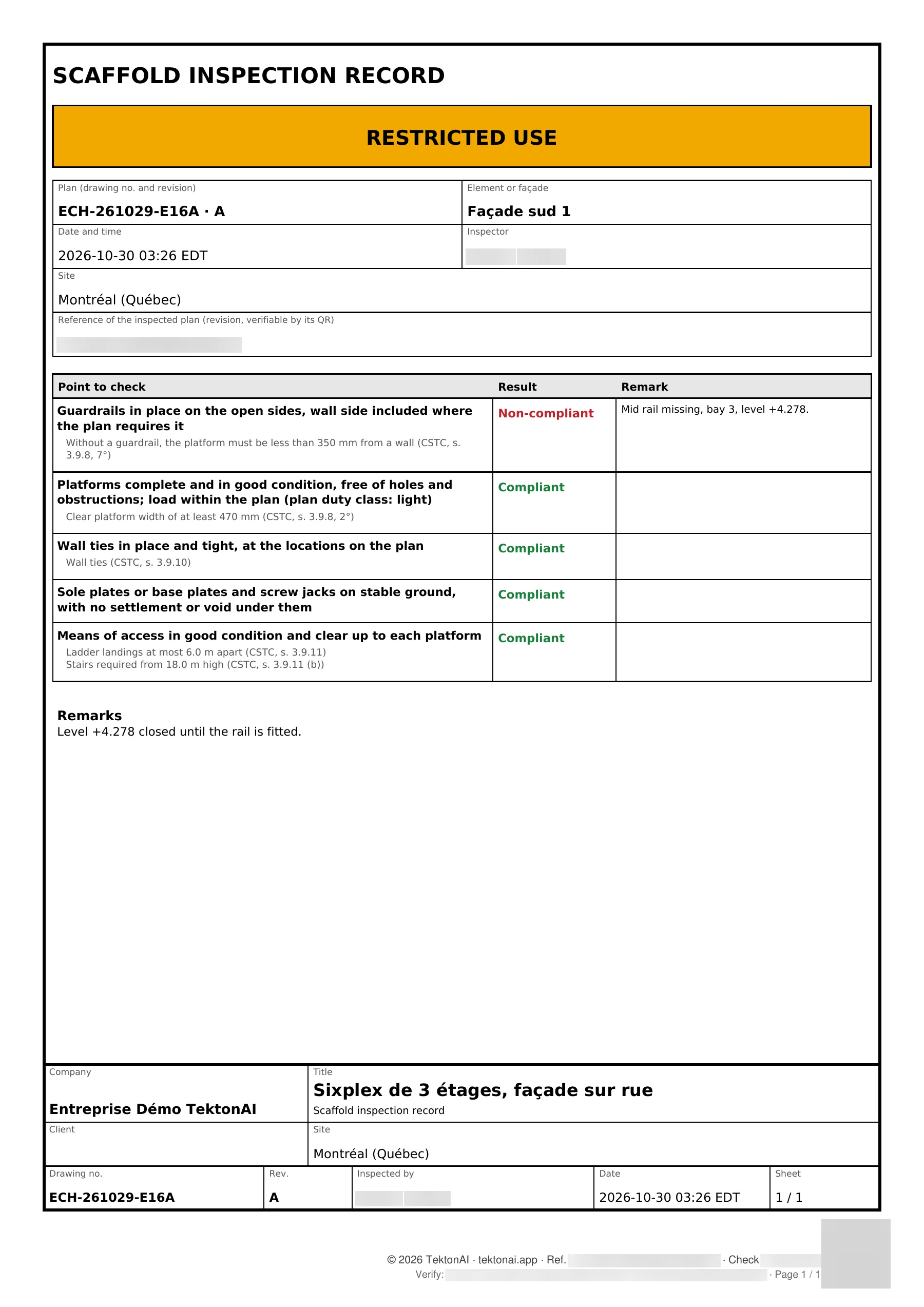
The A4 record covers five points to check, each with the CSTC section that applies:
- the guardrails;
- the platforms;
- the wall ties;
- the sole plates, base plates and screw jacks;
- the means of access.
The A6 status tag gives one of three states: compliant (use permitted), restricted use or prohibited.
It worked when: The answer says "Inspection recorded", with the scaffold's state.
Step 2: correct with a new inspection
Julie then notices that a mid rail is missing. A recorded inspection cannot be changed: she records a new one.
New inspection of façade sud 1 of plan ECH-261029-E16A: guardrails not compliant, mid rail missing, bay 3, level +4.278. The other points are compliant. Level +4.278 closed until the rail is fitted.
Scaffold answers:
Inspection recorded: ECH-261029-E16A rev. A · Façade sud 1 · 2026-10-30 03:26 EDT State: restricted use. Inspector: […].
The record marks the guardrails “Non-compliant”, with Julie’s remark:
The tag to put on the scaffold gives the state and the reason:
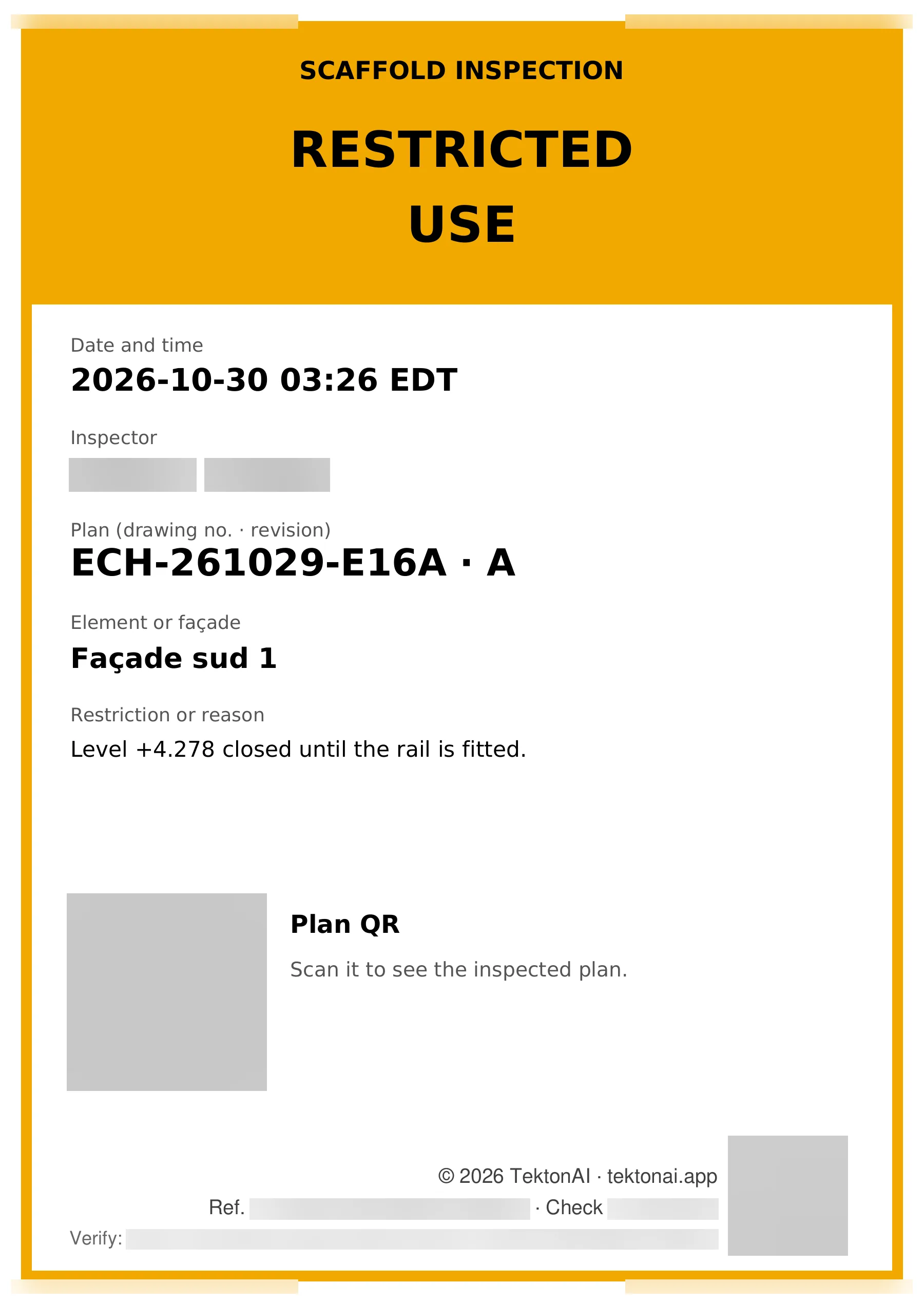
It worked when: The tag says "RESTRICTED USE", with the reason.
Step 3: read the register
To know whether the scaffold can be used, read its register:
Show the inspection register of scaffold ECH-261029-E16A.
Scaffold answers:
Inspection register: ECH-261029-E16A […]
Status tag in force, by element
- ECH-261029-E16A · Façade sud 1 : restricted use (2026-10-30 03:26 EDT, […])
Inspections, most recent first
- 2026-10-30 03:26 EDT · ECH-261029-E16A […] · Façade sud 1 · restricted use · […] ; Guardrails: Mid rail missing, bay 3, level +4.278.
- […]
- 2026-10-30 03:20 EDT · ECH-261029-E16A […] · Façade sud 1 · compliant, use permitted · […]
The tag in force answers the question: the scaffold has been in restricted use since 03:26. The morning’s compliant inspection stays in the register, below the new one.
You can also ask by site:
Is the sixplex scaffold inspected and usable today?
Scaffold answers with the site’s register, the tag in force first:
Inspection register: sixplex […]
Status tag in force, by element
- ECH-261029-E16A · Façade sud 1 : restricted use (2026-10-30 03:26 EDT, […])
[…]
It worked when: The register gives the tag in force first, then the inspections, most recent first.
The link with the plan
The tag carries the QR code of the inspected plan: “Scan it to see the inspected plan.” The record also gives the plan’s reference, which can be checked with its QR code. The record and the tag each have their own TektonAI reference. See Check that a TektonAI plan is authentic.
Good to know
- Scaffold records what the inspector finds. It does not inspect the scaffold.
- A recorded inspection cannot be changed: a correction is a new inspection, and the old one stays in the register.