 TektonAI
How to create an accurate 3D scaffold plan with TektonAI
The prompts to give Claude for a dimensioned scaffold plan, its bill of materials and its 3D model with Scaffold, step by step.
Before you start: create a TektonAI projectThe instructions to paste into Claude or ChatGPT, once and for all.
A project keeps instructions that apply to all its conversations. Create one for TektonAI: in every conversation, your assistant knows what our tools do and how you work, without you repeating it.
In Claude (tested)
- In Claude's left sidebar, open Projects, then Create project. Name it, for example “TektonAI”.
- In the project, open the project instructions and paste the text below. Replace the parts in brackets.
- Open a conversation in this project. In the conversation's tools menu, check that TektonAI is turned on.
On a Claude Team or Enterprise plan, share the project with your colleagues: they all start from the same instructions.
In ChatGPT (not tested)
- In ChatGPT's left sidebar, create a new project.
- In the project settings, paste the text below into its instructions.
TektonAI must first be added to ChatGPT: see Connect your AI assistant.
In Claude Code
Paste the text into the CLAUDE.md file of the folder you work in.
The instructions to paste
You work for [your company name], a construction company in [city, province], with the TektonAI tools connected to this conversation.

What the TektonAI tools do:
- Scaffold prepares 3D scaffold plans from the dimensions of the structure: dimensioned A3 PDF plan, CAD plan (DXF), 3D model (STEP), bill of materials in Excel and CSV, and the load takedown. It revises an existing plan from its drawing number.
- Inventory keeps track of everything our company owns: quantities available, rented out, in for repair and out of service, by location, and every movement with the employee's name. It imports our parts list and reads barcodes.
- Scaffold plans use the parts of our Inventory when we ask.
- Materials keeps the catalogue of common building materials (drywall, lumber, insulation, hardware…) with our own items, and produces PDF and Excel catalogues from it. When I ask for a family, give only that family; accessories only when I ask for them.

How to work with me:
- Answer in English, in plain words and site terms. Produce documents (plans, calculation notes, labels, slips) in English.
- Use the TektonAI tools for every plan, quantity or weight. Never make up a dimension, a quantity or a weight.
- Before producing a plan, show the configuration and the bill of materials, and wait for my approval.
- When a tool asks me a question through a form, let me answer it myself. Never choose the duty class (light, intermediate or heavy) for me.
- Leave plans at the “PRÉLIMINAIRE” (preliminary) status until I give you the names of the person who checked the plan and the person who approved it.
- For an import into Inventory, show the preview, let me choose the mode and wait for my confirmation: a click on the card, or the word “Import” that I type myself. Pass my message on exactly as I wrote it.
- Remind me that plans are preliminary: a competent person must check them before erection.
The same text is also at tektonai.app/en/project-instructions.md.
This tutorial shows how to get a complete scaffold plan from the dimensions of a structure. You use Scaffold · Échafaud, TektonAI’s tool for scaffold plans. You write to Claude in plain English, as you would to a colleague. Scaffold draws the scaffold, counts the pieces and gives you the files.
The example is a 12 m (about 39 ft) façade, with a work platform at 6 m (about 20 ft), on a frame scaffold. It is the plan shown on the Scaffold page.
What you need
- A TektonAI account. Accounts are opened by invitation, after a price request.
- Claude, on the web, on desktop or in Claude Code. Other assistants are compatible, but they have not been tested: see Connect your AI assistant.
- A TektonAI project in your assistant, as explained above.
- The dimensions of the structure. For a façade: its length and the height of the work platform. You can give them in mm, m, feet or inches.
- The scaffold system: 5 ft frame or multidirectional.
Step 1: add TektonAI to Claude
You do this once, for all TektonAI tools.
- In Claude, open Settings, then Connectors.
- Click Add custom connector and paste your company’s address,
https://mcp.tektonai.app/<your-company>/mcp. This address is on the console’s home page, in the “Connect claude.ai or Claude Desktop” card, with a Copy button. - Click Connect and sign in with your TektonAI account.
- Open a new conversation.
Special cases:
- Claude Team or Enterprise plan: the organization owner adds the connector in the organization settings. Each member then clicks Connect.
- Claude Code: one command does it,
claude mcp add --transport http tektonai https://mcp.tektonai.app/<your-company>/mcp.
To check that everything works, ask Claude:
Which TektonAI tools are available in this conversation?
Claude should name the tools of Scaffold and Inventory · Remise. If it does not see them, open a new conversation.
Step 2: describe the structure
Open a conversation in your TektonAI project. The more complete your description, the fewer questions Claude asks you. Give:
- the dimensions, with their units;
- the scaffold system;
- the sector;
- the duty class.
Also ask to see the configuration before the files are produced.
With Scaffold, prepare a scaffold plan for the façade of a building:
- façade length: 12 m
- work platform height: 6 m
- a platform at every level
- system: 5 ft frame scaffold
- sector: building
- duty class: light (1.2 kPa), workers and their tools
- plan dimensions in mm and feet-inches

Before generating the files, show me the configuration and the bill of materials so I can approve them.
Why these details matter:
-
The province of the site determines the rules cited on the plan, anywhere in Canada. Claude works it out from the town or asks you.
-
The sector (building, infrastructure, marine, mining or industrial) determines, in Québec, the rules cited on the plan: subsection 3.9 of Québec’s Code de sécurité pour les travaux de construction (CSTC, Construction Safety Code), the RSST (Regulation respecting occupational health and safety) or the mining regulation, along with the CSA standards.
-
The duty class is used to calculate the load takedown, that is the force at the foot of each standard and the pressure under each base plate. CSA S269.2-16 (clause 6.2.3) sets three classes:
- light (1.2 kPa, 25 lb/ft²): workers and their tools;
- intermediate (2.4 kPa, 50 lb/ft²);
- heavy (3.6 kPa, 75 lb/ft²): masonry and stacked materials.
A province can set a minimum, as Ontario does at 2.4 kPa. The plan then uses the higher of the two values. Scaffold never picks the class for you: without it, the plan has no load takedown.
-
Units can be mixed. Scaffold understands
4500 mm,15'6"or15 ft 6 in. -
Platforms: unless you say otherwise, only the top level gets a platform. Write “a platform at every level” if the crew works over the full height.
Step 3: approve the configuration
Claude first shows you the configuration and the parts list, without producing any files. Take a minute to check:
- The number of bays and levels. The length is rounded up to the next full bay. With 10 ft frames, a 12 m façade becomes 4 bays, or 12,192 mm (40 ft).
- The access. Scaffold puts a ladder in the first bay, with a hatch deck at each lift. It adds a stair tower where the province requires one (in Québec, at 18 m, about 59 ft, and up). For our platform at 6 m, Scaffold chose the ladder.
- The quantities in the bill of materials, if you know your stock.
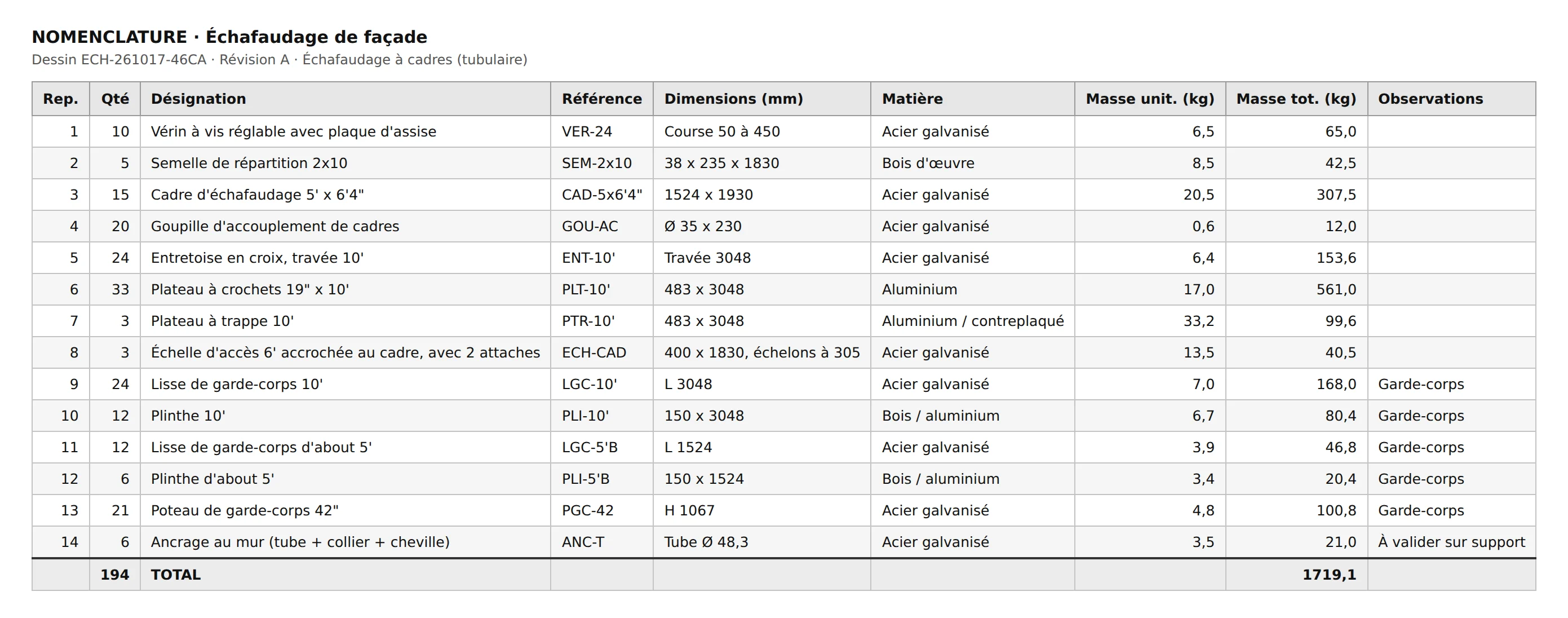
Here is the real bill of materials for this example: 14 lines, 194 pieces, 1,719 kg. For access, it includes 3 hatch decks and 3 ladders.
The plans in this tutorial are in French. Ask for English and Scaffold produces them in English.
Is a value missing that would make the plan wrong or dangerous, such as the platform height? Scaffold asks you for it through a form before producing the plan.
Other missing values do not block the plan:
- the plan comes out right away;
- it carries one line for each missing check, such as “Soil bearing capacity not checked: soil report not provided.”;
- when you have the information, answer the form: the next revision adds the check.
If something is wrong, just say so:
Change the façade to 5 bays (15.24 m) and replace the ladder with a stair tower.
Step 4: generate the plan
When the configuration suits you:
That's good, generate the full plan.
Scaffold gives you download links, valid for 30 days:
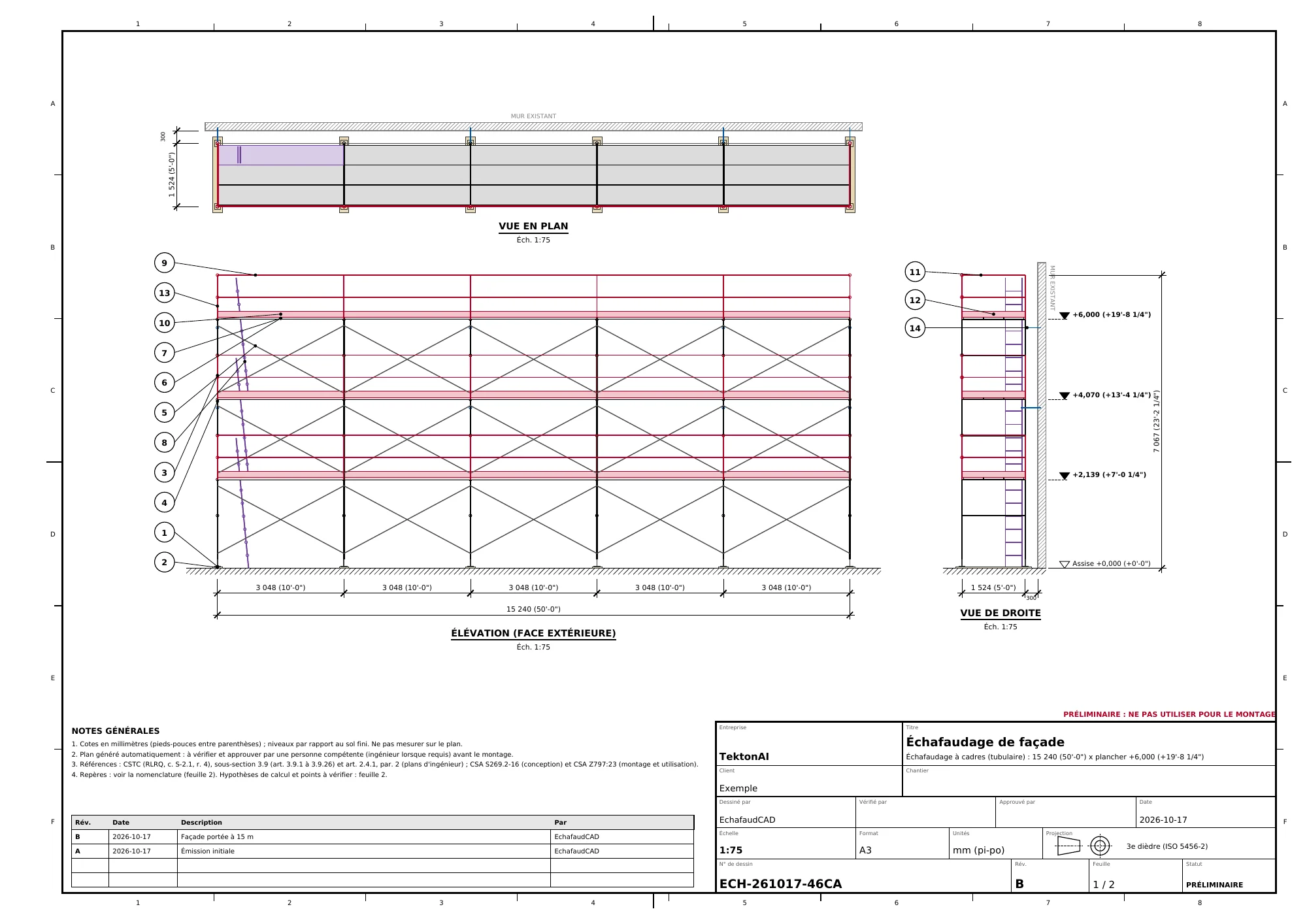
- the A3 PDF plan: dimensioned elevation, plan view and right side view, item tags, levels and title block;
- the bill of materials, in the PDF, in Excel and in CSV: item, quantity, description, part number, dimensions and weights;
- the CAD plan (DXF) and the 3D model (STEP), to open in your usual drawing software;
- the calculation note, an indicative PDF for the engineer who checks the plan;
- the plan data in JSON, for your own tools.
The plan ends with a “Terms and legend” sheet. It gives the meaning of each term used and the legend of each symbol drawn. An erector or a client can then read the plan without guessing. This tutorial’s example files were produced before that sheet was added.
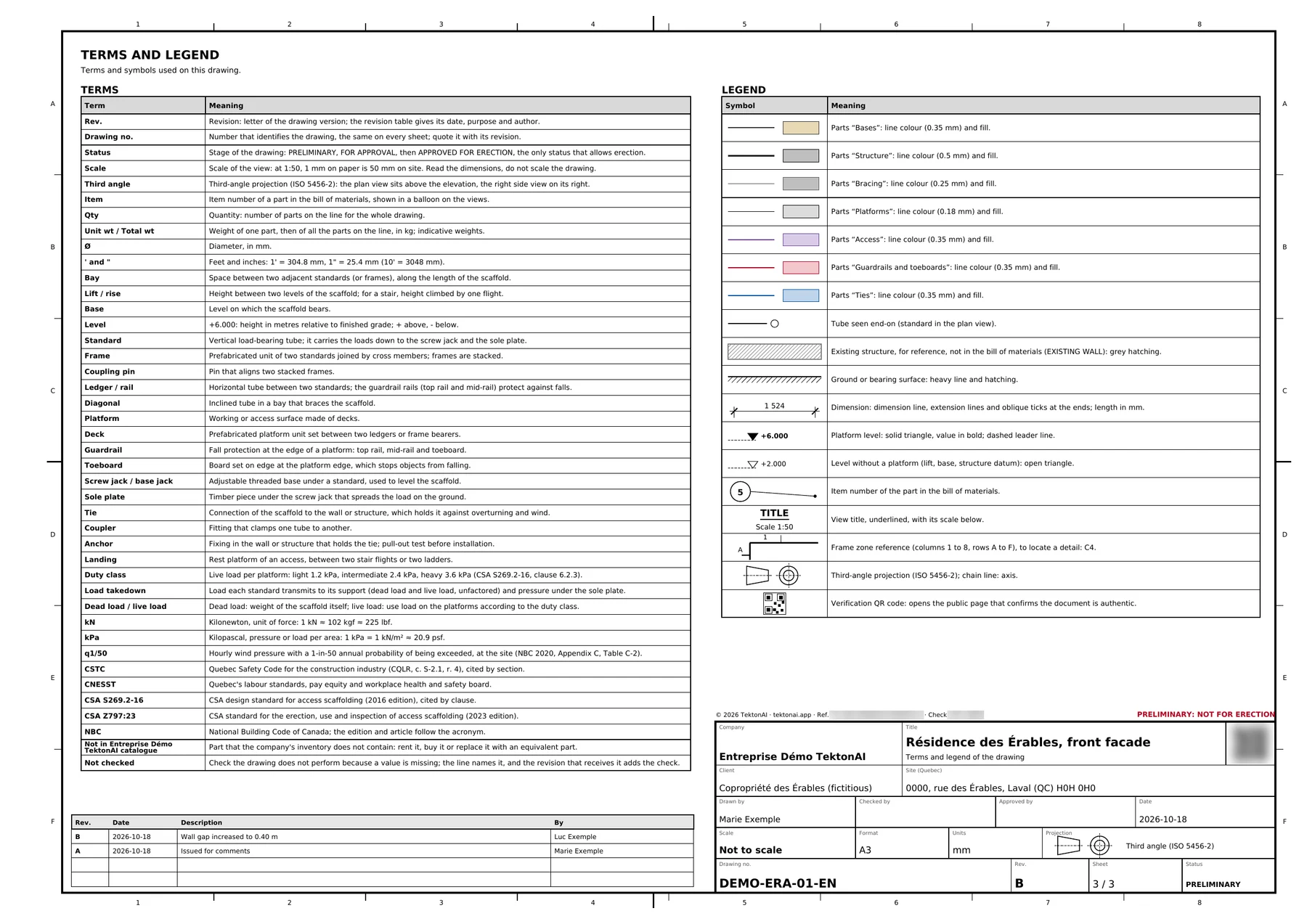
The “Terms and legend” sheet of a recent plan, for a fictional company.
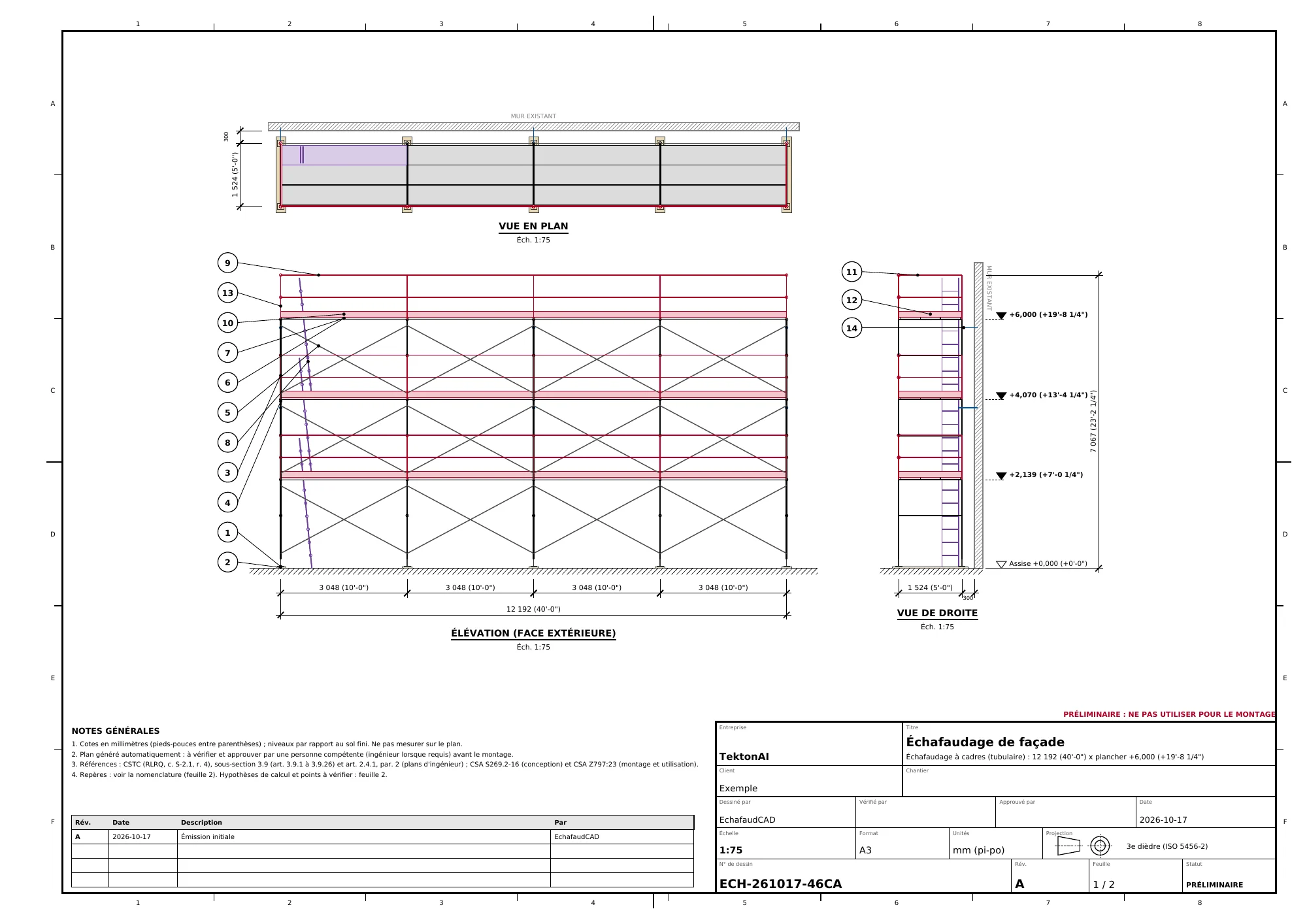
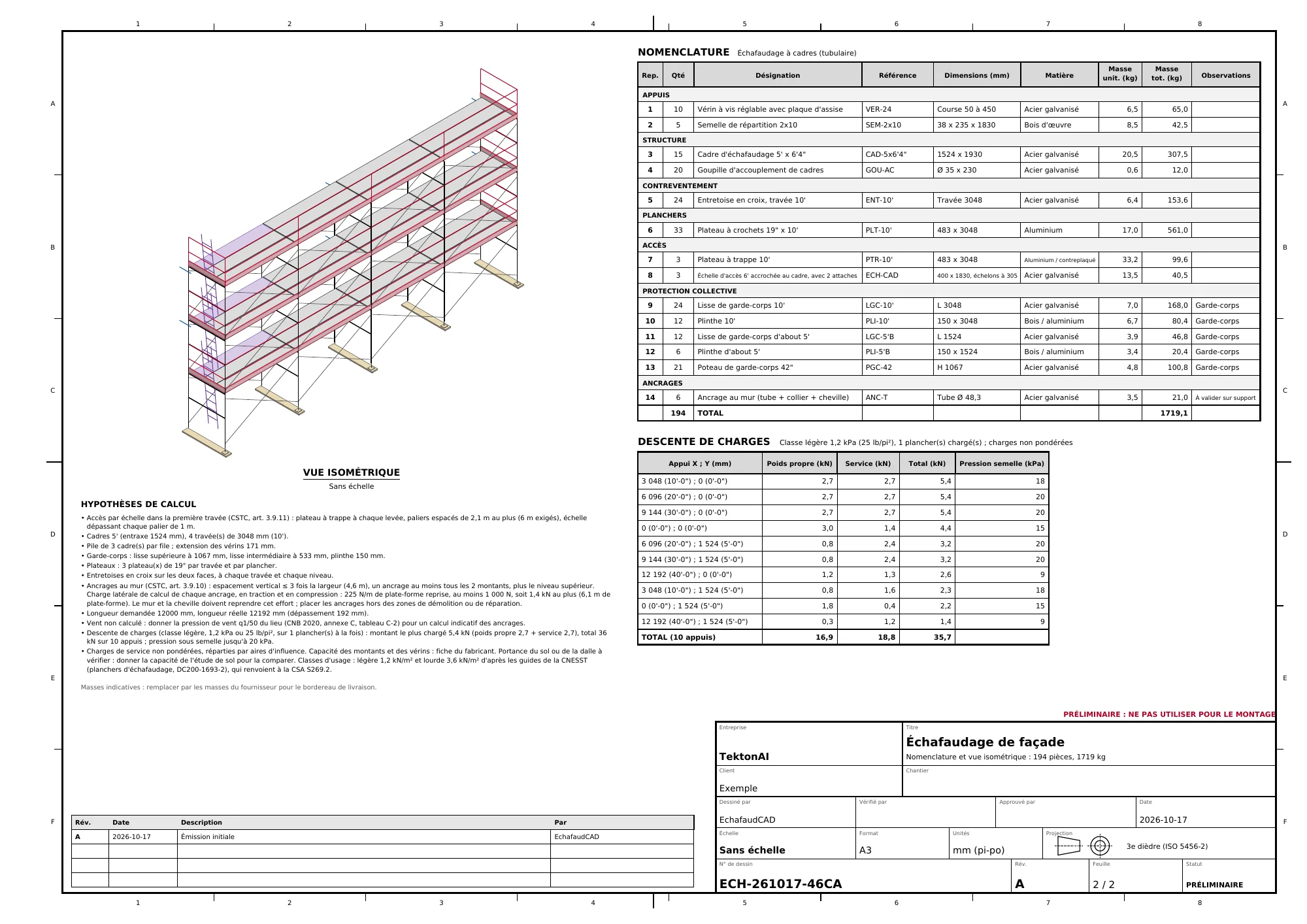
Each plan has a drawing number, here ECH-261017-46CA, and the status “PRÉLIMINAIRE” (preliminary). Each file also carries a “Réf. TK-…” reference. It proves that the file comes from TektonAI: see Check that a document comes from TektonAI.
Step 5: revise without starting over
The site has changed? Give the drawing number and only what changes:
Revise plan ECH-261017-46CA: the façade is now 15 m. Change nothing else.
Replace ECH-261017-46CA with the number in the title block of your plan. The new revision:
- reuses the plan data;
- applies your change;
- takes the next revision letter.
In our example, revision B has 5 bays (15,240 mm), 233 pieces and 2,079 kg. The revision table on every sheet keeps both lines: A “Émission initiale” (initial issue) and B “Façade portée à 15 m” (façade extended to 15 m).
To read the history:
Show me the revision history of plan ECH-261017-46CA.
Going further
Your logo in the title block. You save it once for the whole company:
Save our company logo for the title block of our plans: https://www.example.com/logo.png
The logo belongs to your company’s workspace: it also appears on your colleagues’ plans. You have the file but no web address? Ask for an upload link. Claude gives you a page where you can upload the file.
Several structures on one site. A plan can combine up to 12 elements: façades, piers, tanks, suspended platforms, stair towers, roof guardrails or rolling towers. The plan then contains:
- an overview;
- one sheet per element;
- a consolidated bill of materials;
- the breakdown of pieces by element.
Prepare a single plan for this site, multidirectional system, infrastructure sector:
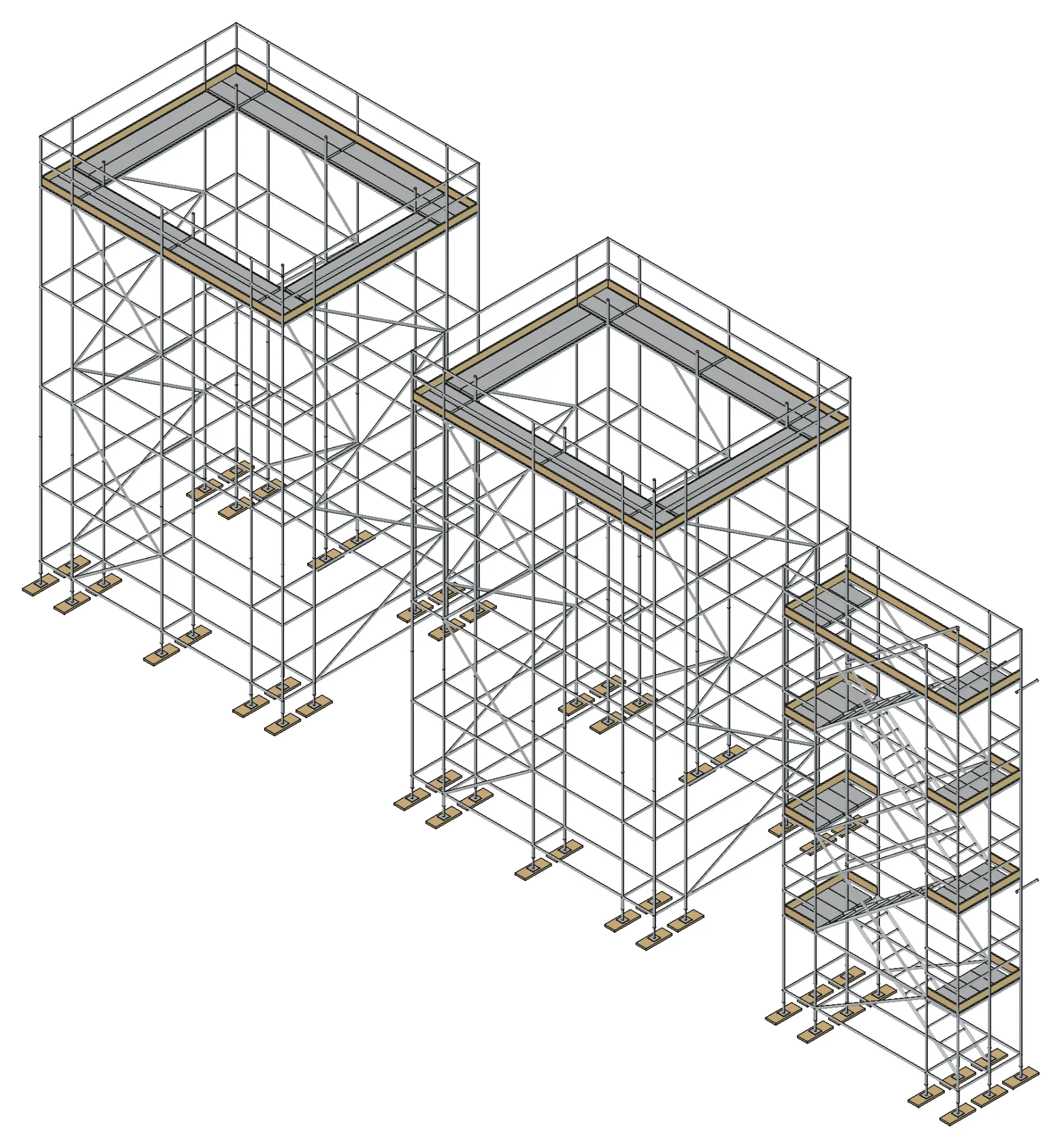
- two rectangular bridge piers, 3 m by 2 m, highest platform 8 m above the footing
- a stair tower up to that platform, at 8 m
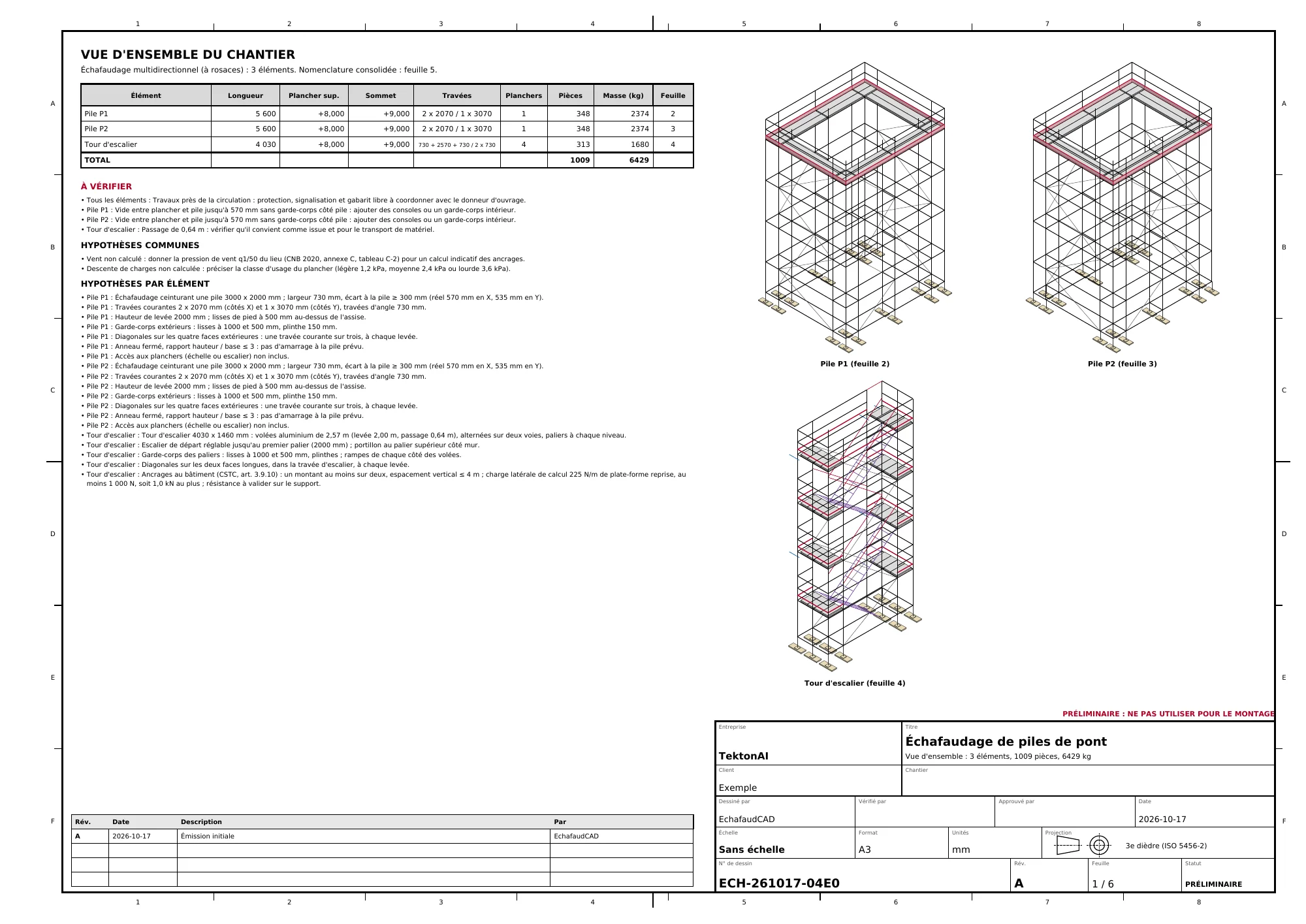
This prompt gave a 6-sheet plan, with 1,009 pieces and 6,429 kg:
- an overview;
- one sheet for each pier;
- one sheet for the stair tower;
- the consolidated bill of materials;
- the breakdown of pieces by element.
The plan also flags points of attention. For example, there is a 570 mm gap between the platform and the pier, with no guardrail on that side. Brackets or an inside guardrail must be added.
Two remarks on this example:
- The prompt gives no duty class. So the plan has no load takedown. Add the class to your prompt to get one.
- The stair tower is a separate element. The connection between the tower and the piers still has to be planned.
Your own parts. Import your parts list from the conversation (see Get started with TektonAI, step 6). The bill of materials then uses your part numbers and weights.
Good to know
- Plans are preliminary: a competent person must check them before erection.
- An engineer must sign the plan when the province’s regulation requires it, for example for a metal scaffold of 18 m and up in Québec. The plan tells you.
- In Québec, for a scaffold over water, the plan also reminds you of the rescue measures in section XI of the CSTC.
Summary
- Create a TektonAI project and add TektonAI to Claude, once.
- Describe the structure with its dimensions, the system, the sector and the duty class.
- Approve the configuration, then generate the plan.
- When the site changes, revise the plan by its drawing number.
Download the files of this example
The real files the tool produced for this example. They are preliminary and serve as an example. They predate the verification reference (Réf. TK) and do not carry one. These files are in French; the tool also produces them in English.
12 m façade, revision A
The plan from steps 2 to 4: drawing ECH-261017-46CA, 194 pieces, 1,719 kg.
- PDFA3 PDF planECH-261017-46CA_revA_plan.pdf · 81 kB
- DXFCAD plan (DXF)ECH-261017-46CA_revA_plan.dxf · 878 kB
- STEP3D model (STEP)ECH-261017-46CA_modele.step · 2.1 MB
- XLSXBill of materials (Excel)ECH-261017-46CA_nomenclature.xlsx · 7 kB
- CSVBill of materials (CSV)ECH-261017-46CA_nomenclature.csv · 1 kB
- JSONPlan data (JSON)ECH-261017-46CA_donnees.json · 9 kB
Façade extended to 15 m, revision B
The revision from step 5: 233 pieces, 2,079 kg.
Site with two piers and a stair tower
The "Several structures on one site" example: drawing ECH-261017-04E0, 6 sheets, 1,009 pieces.
- PDFA3 PDF planECH-261017-04E0_revA_plan.pdf · 144 kB
- DXFCAD plan (DXF)ECH-261017-04E0_revA_plan.dxf · 1.7 MB
- STEP3D model (STEP)ECH-261017-04E0_modele.step · 4.7 MB
- XLSXBill of materials (Excel)ECH-261017-04E0_nomenclature.xlsx · 10 kB
- CSVBill of materials (CSV)ECH-261017-04E0_nomenclature.csv · 2 kB
- JSONPlan data (JSON)ECH-261017-04E0_donnees.json · 12 kB