 TektonAI
Revise a plan and track its versions
Change a scaffold plan without starting over, complete its checks through a form, see who made each revision and check a document.
Before you start: create a TektonAI projectThe instructions to paste into Claude or ChatGPT, once and for all.
A project keeps instructions that apply to all its conversations. Create one for TektonAI: in every conversation, your assistant knows what our tools do and how you work, without you repeating it.
In Claude (tested)
- In Claude's left sidebar, open Projects, then Create project. Name it, for example “TektonAI”.
- In the project, open the project instructions and paste the text below. Replace the parts in brackets.
- Open a conversation in this project. In the conversation's tools menu, check that TektonAI is turned on.
On a Claude Team or Enterprise plan, share the project with your colleagues: they all start from the same instructions.
In ChatGPT (not tested)
- In ChatGPT's left sidebar, create a new project.
- In the project settings, paste the text below into its instructions.
TektonAI must first be added to ChatGPT: see Connect your AI assistant.
In Claude Code
Paste the text into the CLAUDE.md file of the folder you work in.
The instructions to paste
You work for [your company name], a construction company in [city, province], with the TektonAI tools connected to this conversation.

What the TektonAI tools do:
- Scaffold prepares 3D scaffold plans from the dimensions of the structure: dimensioned A3 PDF plan, CAD plan (DXF), 3D model (STEP), bill of materials in Excel and CSV, and the load takedown. It revises an existing plan from its drawing number.
- Inventory keeps track of everything our company owns: quantities available, rented out, in for repair and out of service, by location, and every movement with the employee's name. It imports our parts list and reads barcodes.
- Scaffold plans use the parts of our Inventory when we ask.
- Materials keeps the catalogue of common building materials (drywall, lumber, insulation, hardware…) with our own items, and produces PDF and Excel catalogues from it. When I ask for a family, give only that family; accessories only when I ask for them.

How to work with me:
- Answer in English, in plain words and site terms. Produce documents (plans, calculation notes, labels, slips) in English.
- Use the TektonAI tools for every plan, quantity or weight. Never make up a dimension, a quantity or a weight.
- Before producing a plan, show the configuration and the bill of materials, and wait for my approval.
- When a tool asks me a question through a form, let me answer it myself. Never choose the duty class (light, intermediate or heavy) for me.
- Leave plans at the “PRÉLIMINAIRE” (preliminary) status until I give you the names of the person who checked the plan and the person who approved it.
- For an import into Inventory, show the preview, let me choose the mode and wait for my confirmation: a click on the card, or the word “Import” that I type myself. Pass my message on exactly as I wrote it.
- Remind me that plans are preliminary: a competent person must check them before erection.
The same text is also at tektonai.app/en/project-instructions.md.
A plan often changes: the façade gets longer, a check is added, the engineer approves the plan. Scaffold keeps every version under the same drawing number. This tutorial shows how to:
- revise a plan;
- track its versions;
- prove that a document really comes from you.
What you need
- A plan produced by Scaffold in your company, and its drawing number (for example ECH-261017-46CA). See How to create an accurate 3D scaffold plan.
Step 1: find the plan’s history
Show the history of plan ECH-261017-46CA.
Your assistant lists every revision, with:
- its index;
- its date;
- its description;
- the employee who made it.
Every member of your company can look at and revise your plans. No other company sees them.
Step 2: ask for a revision
Revise plan ECH-261017-46CA: the façade becomes 15 m. Change nothing else.
Scaffold:
- takes all the data of the latest revision;
- applies only your change;
- produces the next index, with all its files;
- redoes the “Terms and legend” sheet: if the change adds a symbol or a term, it appears there;
- sets the status back to “PRÉLIMINAIRE” (preliminary).
Step 3: complete the checks through a form
A plan can come out with lines such as “Soil bearing capacity not checked: soil report not provided.”. In that case, the form for these questions comes with the plan. When you have the information:
- Open the form.
- Answer the questions.
- Click Send.
The next revision adds the check. The line disappears from the plan and the calculation note.
The form expires after 24 hours. After that, give your answers in the conversation and ask for the plan’s revision. Your assistant passes your answers on, and they are recorded as relayed by it.
Step 4: read the revision table
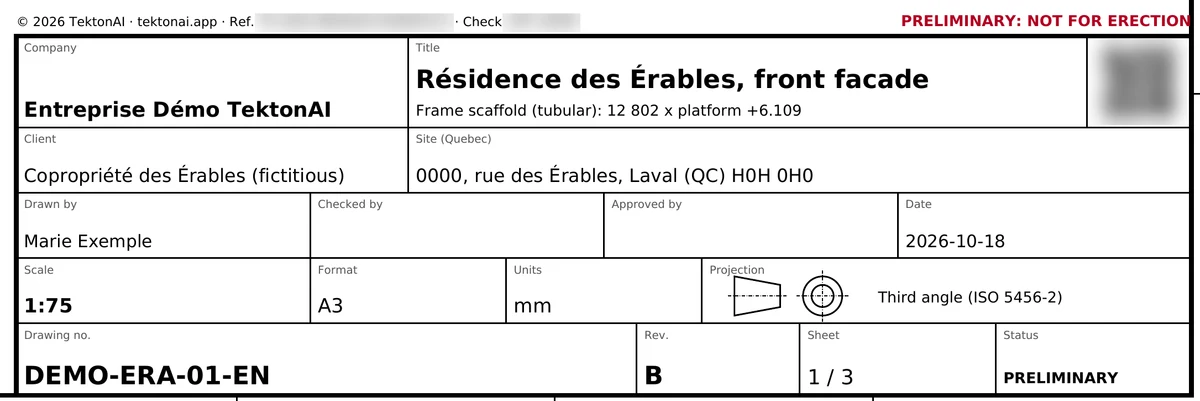
Every sheet of the plan carries the revision table, with the columns Rev., Date, Description and By.
- The “By” box carries the name of the employee who made the revision. Failing that, it carries the name given for “Drawn by”.
- It never prints an account identifier.
- The “Drawn by”, “Checked by” and “Approved by” boxes of the title block keep the names you give.

Step 5: move the status forward
Set plan ECH-261017-46CA to APPROUVÉ POUR MONTAGE (approved for erection): checked by Marie Tremblay, approved by Jean Côté.
A plan can have three statuses:
- PRÉLIMINAIRE (preliminary);
- POUR APPROBATION (for approval);
- APPROUVÉ POUR MONTAGE (approved for erection).
The last one requires two names: the person who checked the plan and the person who approved it. Until then, the plan carries the mark “PRÉLIMINAIRE : NE PAS UTILISER POUR LE MONTAGE” (preliminary, not for erection). Every revision sets the status back to preliminary.
Step 6: check that a document comes from you
Every sheet carries, above the title block, the mark “Réf. TK-… · Contrôle …” and a QR code. Anyone who receives the plan, for example a client or an inspector, can scan the QR code or open the verification address.
The verification page is public. It:
- says whether the reference is authentic or unknown;
- shows the reference, the issuer, the date, the issuing organization, the signed content and the check code;
- compares a file you received with the original, if you drop it on the page, and says whether it is identical or modified.
The page does not keep the dropped file. It never shows the document itself.
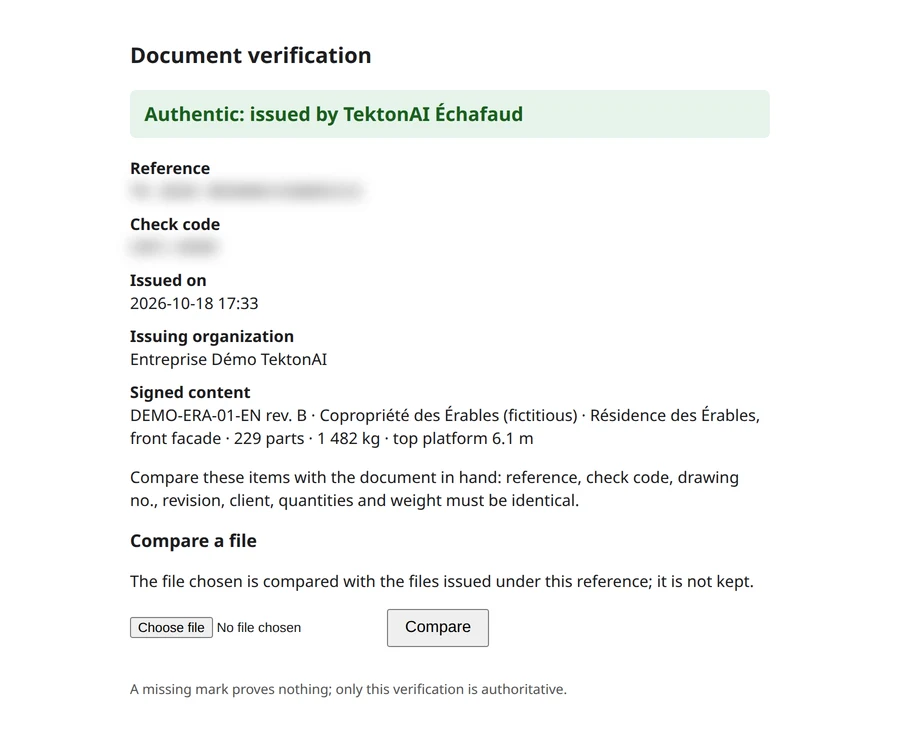
A missing mark proves nothing, since a screenshot removes it. Only the verification counts. See Security and privacy.
Good to know
- Only the company that produced a plan can revise it.
- Download links are valid for 30 days. After that, the files are archived. To get them back, ask us for a copy at info@tektonai.app or produce a new revision.
- Plans stay preliminary: a competent person must check them before erection.