 TektonAI
Architectural drawings: from the PDF drawings only
You only have the architect's PDF set: Scaffold reads the dimensions and levels, you answer its questions, then it draws the scaffold.
Your situation is different? Architectural drawings: from the IFC model · How to create an accurate 3D scaffold plan with TektonAI
What you will get
A preliminary scaffold plan stopped at the party walls, made from the architect's PDF set only, and the list of what the PDF does not give.
Before you start: create a TektonAI projectThe instructions to paste into Claude or ChatGPT, once and for all.
A project keeps instructions that apply to all its conversations. Create one for TektonAI: in every conversation, your assistant knows what our tools do and how you work, without you repeating it.
In Claude (tested)
- In Claude's left sidebar, open Projects, then Create project. Name it, for example “TektonAI”.
- In the project, open the project instructions and paste the text below. Replace the parts in brackets.
- Open a conversation in this project. In the conversation's tools menu, check that TektonAI is turned on.
On a Claude Team or Enterprise plan, share the project with your colleagues: they all start from the same instructions.
In ChatGPT (not tested)
- In ChatGPT's left sidebar, create a new project.
- In the project settings, paste the text below into its instructions.
TektonAI must first be added to ChatGPT: see Connect your AI assistant.
In Claude Code
Paste the text into the CLAUDE.md file of the folder you work in.
The instructions to paste
You work for [your company name], a construction company in [city, province], with the TektonAI tools connected to this conversation.

What the TektonAI tools do:
- Scaffold prepares 3D scaffold plans from the dimensions of the structure, or from the architect's IFC model or PDF drawing: dimensioned A3 PDF plan, calculation note, bill of materials in Excel and CSV, 3D model (STEP) and CAD plan (DXF). It revises an existing plan from its drawing number.
- Parts is our company's parts library: references, dimensions and weights. It imports our parts list.
- Scaffold plans use the parts of our Parts library when we ask.
- Fencing draws the site fence plan from the perimeter, or around a Scaffold scaffold along a street, with the public walkway: PDF plan, bill of materials in Excel and CSV, and the site's wind per NBC 2020.
- Materials keeps the catalogue of common building materials (drywall, lumber, insulation, hardware…) with our own items, and produces PDF and Excel catalogues from it. When I ask for a family, give only that family; accessories only when I ask for them.

How to work with me:
- Answer in English, in plain words and site terms. Produce documents (plans, calculation notes, catalogues) in English.
- Use the TektonAI tools for every plan, quantity or weight. Never make up a dimension, a quantity or a weight.
- Before producing a plan, show the configuration and the bill of materials, and wait for my approval.
- When a tool asks me a question through a form, let me answer it myself. Never choose the duty class (light, intermediate or heavy) for me.
- Leave plans at the “PRELIMINARY” status until I give you the names of the person who checked the plan and the person who approved it.
- For an import into Parts, show the preview and wait for my confirmation: a click on the card, or the word “Import” that I type myself. Pass my message on exactly as I wrote it.
- Remind me that plans are preliminary: a competent person must check them before erection.
The same text is also at tektonai.app/en/project-instructions.md.
Most of the time, the architect only gives you the drawings as PDF. That is enough for Scaffold: it reads the dimensions and levels written on the sheets, your assistant reads the views with you, then Scaffold draws the scaffold.
This tutorial follows a three-storey sixplex in Montréal, between two neighbouring buildings. Fictional building created for this example: its drawings carry no architect’s seal or signature. The company in the title blocks, Entreprise Démo TektonAI, is fictional too. The answers shown here are Scaffold’s.
What you need
- The architect’s PDF set, with the elevations and sections. The PDF must contain text: a scanned PDF is flagged.
- A TektonAI account added to your AI assistant, and a TektonAI project, as explained above.
To follow the example, download the sixplex set (26 sheets) at the bottom of the page.
Step 1: upload the set
Ask your assistant for an upload link for an architect’s drawing. The link is valid for one hour. Drop the PDF there. The page confirms, in French for now, that the drawing was received and when it will be deleted.
The file is kept for one week, then deleted.
It worked when: The page confirms the drawing was received, with the file name and its deletion date.
Step 2: have the elevations and sections read
Julie Exemple, the fictional company’s employee, writes:
I only have the architect's PDF set, 26 sheets. Read the elevations and the sections, and note the length of each façade and the floor levels, with the sheet where you read them.
Scaffold reads the sheets one by one. It picks up the text, its position, the written scales and the written dimensions. It does not read the drawing lines: your assistant links each dimension to its view, then shows you the lengths and heights. You accept or correct them before the plan.
Here is the survey made by Julie’s assistant, with the sheet of each value:
| Measurement | Value read | Sheet |
|---|---|---|
| South façade (front, on the street) | 16,200 mm | A-201 |
| North façade (rear) | 16,200 mm | A-202 |
| East and west façades | party walls, no openings | A-203, A-204 |
| Finished grade | ±0.000 | A-201 to A-204 |
| Ground, 2nd and 3rd floor | +0.750, +3.700 and +6.650 | A-201 |
| Roof (top of deck) | +9.600 | A-201 |
| Top of parapet | +10.350 | A-201 |
| Projection on the south façade | none, except the coping (50 mm) | A-201 |
| Balconies | north façade only | A-202 |
Written dimensions are numbers without a unit. Here, the title block says dimensions are in millimetres and levels in metres: the unit question is settled. Compare this table with the sheets before you go on.
It worked when: You have a table of lengths and levels, each with its sheet, compared with the sheets.
Step 3: say what to scaffold
The PDF does not say which façade to scaffold, or where the lot limits are. Julie says it:
We're scaffolding the south façade, the one on the street. The east and west walls are party walls: the scaffold stops at those limits. Finished grade at ±0.000 is the ground the scaffold bears on, and the parapet counts: we go up to +10.35. No balcony on the street side.
It worked when: Your assistant has noted the façade to scaffold and the two party walls.
Step 4: answer the questions
Before drawing, Scaffold asks 5 questions in a form:
- the height of the top platform (the top of the work zone is at 10.35 m);
- the clearance between the platform and the wall;
- whether the site is on a hill, ridge or escarpment;
- the importance category for wind;
- the duty class of the platforms: light, intermediate or heavy.
The form does not ask for the tie capacity: the plan will say it is not checked. Julie answers:
Highest platform at 8.85 m, 300 mm from the wall, no hill, normal risk, light duty. I don't know the anchor capacity.
Watch out: The duty class is always yours to choose: do not let the assistant choose it for you.
It worked when: The form waits for no more answers, and you chose the duty class yourself.
Step 5: read the plan
Scaffold produces plan ECH-261023-3A8B, revision A, preliminary:
16 154 x platform +8.850; bays 4 x 3048 + 2438 + 1524; platforms +1.128, +3.059, +4.989, +6.920, +8.850; top +9.917
Total: 444 parts, 3645 kg (indicative weights)
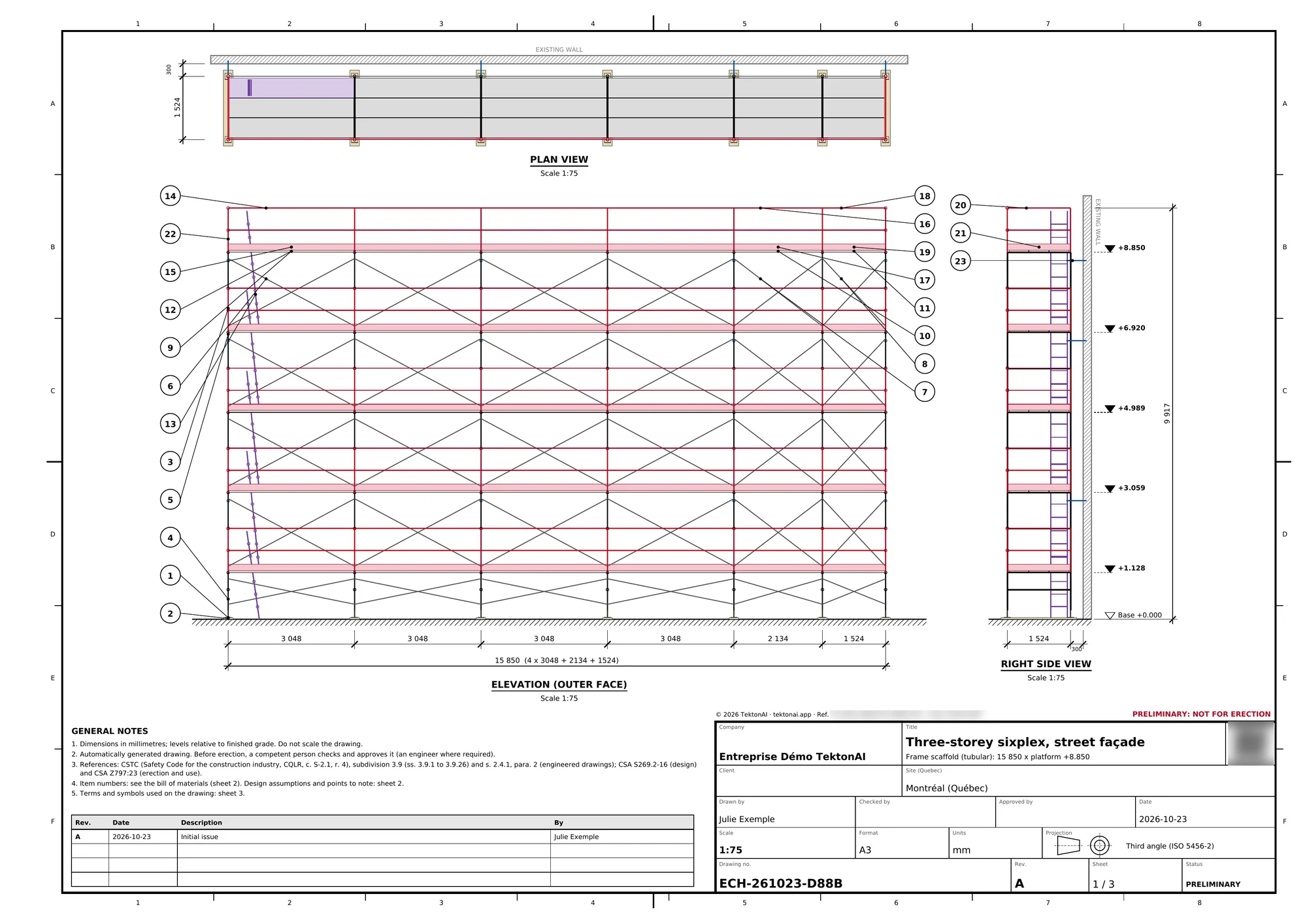
The scaffold stops at the party wall. The plan says so in its points to note:
Length: the scaffold is 16,154 mm long for a 16,200 mm façade and stops 46 mm short of the right end. Limit on the right: party wall (value provided by the user). No combination of bays fills this gap without crossing the limit.
The plan also says what it does not check:
Soil bearing capacity not checked: soil report not provided.
Capacity of standards, screw jacks or casters and ties not checked: generic parts, no manufacturer data sheet.
After the plan, Scaffold offers one optional question: the soil bearing capacity. Your answer adds that check in a revision.
It worked when: The plan stops at the party walls and gives the remaining gap, here 46 mm.
What the PDF does not give
| With the IFC model | With the PDF drawings only | |
|---|---|---|
| The façades | Scaffold finds them and proposes them. | You name the façade to scaffold. |
| Party walls | Read in the model. | You give them. |
| The scaffold’s IFC | Placed in the architect’s model coordinate system. | Delivered alone, in a local coordinate system: to place by hand in a model. |
Without a model, the scaffold’s IFC starts at the foot of the left end of the façade, in millimetres, with no georeference.
Special cases
- Your PDF is a scan: Scaffold answers “PDF without text… most likely a scanned plan”. Ask the architect for the PDF exported from the drawing software, or give the façade dimensions yourself.
- Your file is a DWG: the upload answers “Refused: DWG file: this format is not read.” Ask the architect for an IFC or PDF export.
- Your file is over 100 MB, or your PDF over 200 pages: upload only the sheets you need.
- The title block does not give the unit of the dimensions: your assistant asks you. Answer per the title block, often millimetres for dimensions and metres for levels.
- Your assistant does not see the tool: an administrator must give you access, on the Access page of the console. See Your team in TektonAI.
Good to know
The Scaffold plan is preliminary. A competent person must check it before erection. An engineer must sign it when the province’s regulation requires it.
The architect’s set in this example is fictional: do not use it to build.
Download the files of this example
The real files the tool produced for this example. They are preliminary and serve as an example.
The architect's drawing set
The sixplex's 26 sheets in one PDF, the starting file of this tutorial (in French). Fictional building created for this example.
Scaffold: street façade, revision A
The plan from step 5: drawing ECH-261023-3A8B, 3 A3 sheets, 444 parts, 3,645 kg (indicative weights). The QR code on each PDF opens its verification page.
- PDFA3 PDF planECH-261023-3A8B_revA_plan.pdf · 134 kB
- PDFCalculation note (PDF)ECH-261023-3A8B_revA_note_calcul.pdf · 74 kB
- DXFCAD plan (DXF)ECH-261023-3A8B_revA_plan.dxf · 948 kB
- XLSXBill of materials (Excel)ECH-261023-3A8B_nomenclature.xlsx · 9 kB
- CSVBill of materials (CSV)ECH-261023-3A8B_nomenclature.csv · 2 kB
- STEP3D model (STEP)ECH-261023-3A8B_modele.step · 10.8 MB
- IFCIFC modelECH-261023-3A8B_modele.ifc · 406 kB