 TektonAI
See the scaffold in 3D and give the IFC to the architect
Your assistant shows a plan's scaffold in 3D, in the conversation. Then you give the architect the IFC model, to place in their model.
Your situation is different? Architectural drawings: from the IFC model · How to create an accurate 3D scaffold plan with TektonAI
What you will get
A 3D view of your scaffold that you turn around in the conversation, and the IFC model to give to the architect.
Before you start: create a TektonAI projectThe instructions to paste into Claude or ChatGPT, once and for all.
A project keeps instructions that apply to all its conversations. Create one for TektonAI: in every conversation, your assistant knows what our tools do and how you work, without you repeating it.
In Claude (tested)
- In Claude's left sidebar, open Projects, then Create project. Name it, for example “TektonAI”.
- In the project, open the project instructions and paste the text below. Replace the parts in brackets.
- Open a conversation in this project. In the conversation's tools menu, check that TektonAI is turned on.
On a Claude Team or Enterprise plan, share the project with your colleagues: they all start from the same instructions.
In ChatGPT (not tested)
- In ChatGPT's left sidebar, create a new project.
- In the project settings, paste the text below into its instructions.
TektonAI must first be added to ChatGPT: see Connect your AI assistant.
In Claude Code
Paste the text into the CLAUDE.md file of the folder you work in.
The instructions to paste
You work for [your company name], a construction company in [city, province], with the TektonAI tools connected to this conversation.

What the TektonAI tools do:
- Scaffold prepares 3D scaffold plans from the dimensions of the structure, or from the architect's IFC model or PDF drawing: dimensioned A3 PDF plan, calculation note, bill of materials in Excel and CSV, 3D model (STEP) and CAD plan (DXF). It revises an existing plan from its drawing number.
- Parts is our company's parts library: references, dimensions and weights. It imports our parts list.
- Scaffold plans use the parts of our Parts library when we ask.
- Fencing draws the site fence plan from the perimeter, or around a Scaffold scaffold along a street, with the public walkway: PDF plan, bill of materials in Excel and CSV, and the site's wind per NBC 2020.
- Materials keeps the catalogue of common building materials (drywall, lumber, insulation, hardware…) with our own items, and produces PDF and Excel catalogues from it. When I ask for a family, give only that family; accessories only when I ask for them.

How to work with me:
- Answer in English, in plain words and site terms. Produce documents (plans, calculation notes, catalogues) in English.
- Use the TektonAI tools for every plan, quantity or weight. Never make up a dimension, a quantity or a weight.
- Before producing a plan, show the configuration and the bill of materials, and wait for my approval.
- When a tool asks me a question through a form, let me answer it myself. Never choose the duty class (light, intermediate or heavy) for me.
- Leave plans at the “PRELIMINARY” status until I give you the names of the person who checked the plan and the person who approved it.
- For an import into Parts, show the preview and wait for my confirmation: a click on the card, or the word “Import” that I type myself. Pass my message on exactly as I wrote it.
- Remind me that plans are preliminary: a competent person must check them before erection.
The same text is also at tektonai.app/en/project-instructions.md.
A PDF plan reads well at the office. To picture the scaffold, a 3D view helps more: you turn around it and look at the façade from the front or the side. This tutorial shows how to ask your assistant for it, then how to give the scaffold to the architect, as IFC.
Julie Exemple, of Entreprise Démo TektonAI, already has plan ECH-261023-17A3: the scaffold of the south façade of a three-storey sixplex in Montréal. It comes from the tutorial Architectural drawings: from the IFC model.
What you need
- The number of a Scaffold plan (ECH-…), printed in the title block.
- An assistant that can show a page in the conversation. In Claude, it is an Artifact.
Step 1: ask for the 3D view
Show me the scaffold of plan ECH-261023-17A3 in 3D.
Scaffold first answers with a short line:
3D view of drawing ECH-261023-17A3, revision A (preliminary): 1 structure, 320 bytes of data.
Your assistant then builds the 3D page in the conversation, from this data. The page comes from no TektonAI server and needs no file.
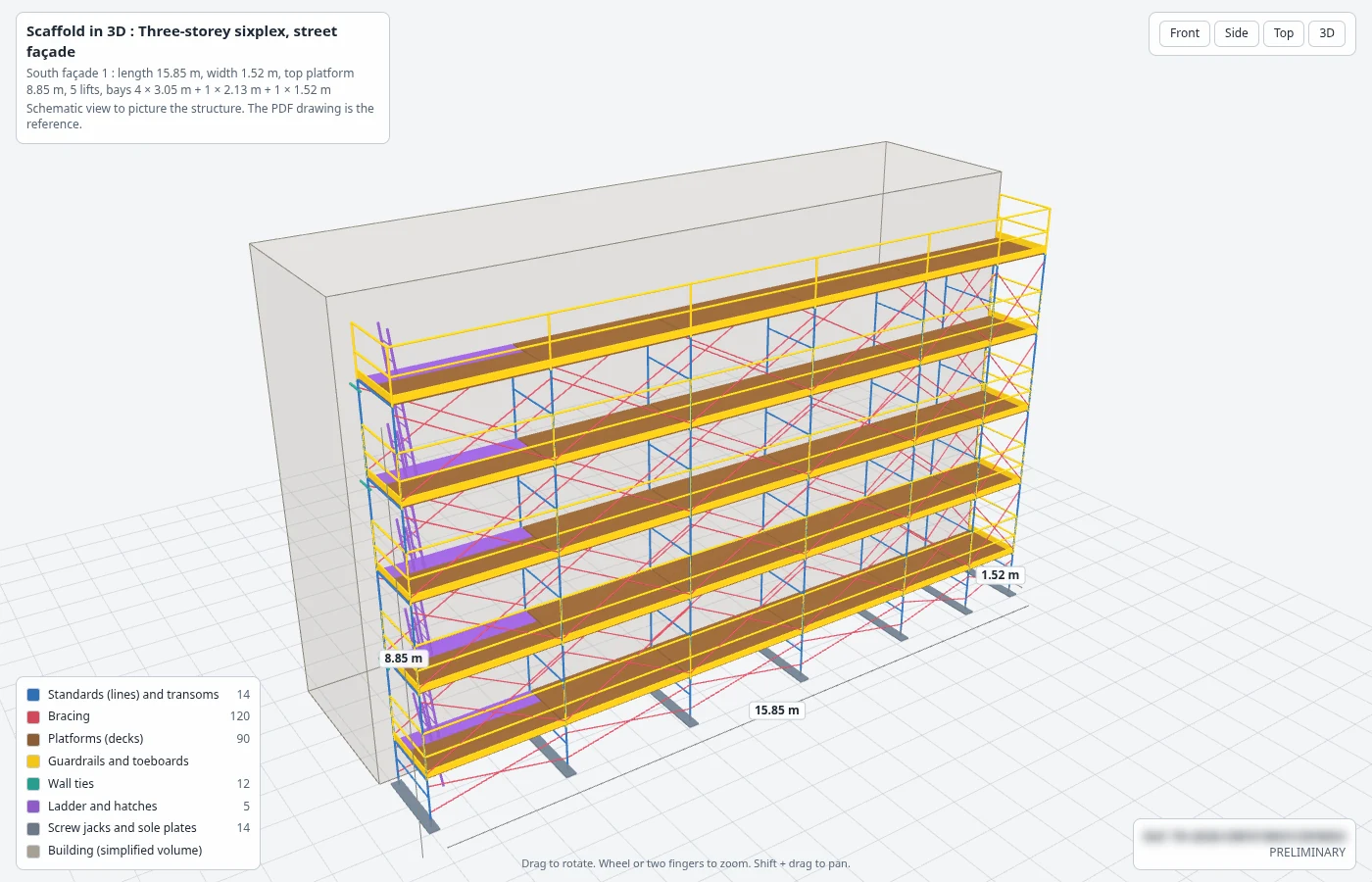
It worked when: The 3D page opens in the conversation, with the plan's title and the "PRELIMINARY" status.
Step 2: turn around the scaffold
- Drag to rotate.
- Use the wheel, or two fingers on a phone, to zoom.
- Hold Shift and drag to pan.
- The Front, Side, Top and 3D buttons give the usual views.
- In the legend, click a part family to hide or show it: standards, bracing, platforms, guardrails, ties, ladder, screw jacks.
At the top, the page sums up the structure:
South façade 1 : length 15.85 m, width 1.52 m, top platform 8.85 m, 5 lifts, bays 4 × 3.05 m + 1 × 2.13 m + 1 × 1.52 m
The building is a simple volume: the façade wall and its height. The openings, the other sides and the roof are not shown.
Watch out: The 3D view is schematic. To count parts, use the plan's bill of materials. The PDF drawing is the reference.
It worked when: You see the scaffold from the front, the side and the top, and you hide a part family.
Step 3: give the IFC model to the architect
Give me the IFC model of this plan, for the architect.
Your assistant gives you the link to the plan’s IFC model. Like the other files, the link stays valid for 30 days.
Julie’s plan was made from the architect’s IFC model. Its IFC model therefore sits in front of the south façade, in the model’s coordinates and units (mm). The architect opens both files together: the scaffold falls into place.
It worked when: The architect opens the IFC model with their own model, and the scaffold stands in front of the right façade.
Special cases
- Your assistant does not show a page in the conversation: ask it for the plan’s links (PDF plan, 3D model). The 3D view depends on your assistant: see What depends on your AI assistant.
- The plan was made without an IFC model, for example from the PDF drawings only: the IFC model uses local coordinates. The architect places it by hand in front of the façade.
- The plan groups several structures: a pier, a suspended platform, a stair tower or a tank shows as a volume, with its length, width and height, without its tubes.
- The scaffold is very large: a phone may slow down while drawing it. Open the page on a computer, or use the PDF plan.
- Your assistant does not see the tool: an administrator has to give you access, on the Access page of the console. See Your team in TektonAI.
Good to know
- The 3D view shows the plan’s reference and status. The plan stays preliminary until a competent person has checked it.
- The IFC model and the 3D model (STEP) come with every plan, unless you ask for a plan without a 3D model.
Download the files of this example
The real files the tool produced for this example. They are preliminary and serve as an example.
Plan ECH-261023-17A3, revision A
The plan of this example and its IFC model, placed in the coordinates of the architect's model. The QR code on the PDF opens its verification page.