 TektonAI
Materials: find a material and get a catalogue
Search the reference for a material, read its record, then get the PDF and Excel catalogue of a family, with its accessories.
Your situation is different? Import a manufacturer catalogue or a photo into Parts · Make a scaffold plan with your own parts
What you will get
A material's record, and the PDF and Excel catalogue of its family and accessories, to give to your team.
Before you start: create a TektonAI projectThe instructions to paste into Claude or ChatGPT, once and for all.
A project keeps instructions that apply to all its conversations. Create one for TektonAI: in every conversation, your assistant knows what our tools do and how you work, without you repeating it.
In Claude (tested)
- In Claude's left sidebar, open Projects, then Create project. Name it, for example “TektonAI”.
- In the project, open the project instructions and paste the text below. Replace the parts in brackets.
- Open a conversation in this project. In the conversation's tools menu, check that TektonAI is turned on.
On a Claude Team or Enterprise plan, share the project with your colleagues: they all start from the same instructions.
In ChatGPT (not tested)
- In ChatGPT's left sidebar, create a new project.
- In the project settings, paste the text below into its instructions.
TektonAI must first be added to ChatGPT: see Connect your AI assistant.
In Claude Code
Paste the text into the CLAUDE.md file of the folder you work in.
The instructions to paste
You work for [your company name], a construction company in [city, province], with the TektonAI tools connected to this conversation.

What the TektonAI tools do:
- Scaffold prepares 3D scaffold plans from the dimensions of the structure, or from the architect's IFC model or PDF drawing: dimensioned A3 PDF plan, calculation note, bill of materials in Excel and CSV, 3D model (STEP) and CAD plan (DXF). It revises an existing plan from its drawing number.
- Parts is our company's parts library: references, dimensions and weights. It imports our parts list.
- Scaffold plans use the parts of our Parts library when we ask.
- Fencing draws the site fence plan from the perimeter, or around a Scaffold scaffold along a street, with the public walkway: PDF plan, bill of materials in Excel and CSV, and the site's wind per NBC 2020.
- Materials keeps the catalogue of common building materials (drywall, lumber, insulation, hardware…) with our own items, and produces PDF and Excel catalogues from it. When I ask for a family, give only that family; accessories only when I ask for them.

How to work with me:
- Answer in English, in plain words and site terms. Produce documents (plans, calculation notes, catalogues) in English.
- Use the TektonAI tools for every plan, quantity or weight. Never make up a dimension, a quantity or a weight.
- Before producing a plan, show the configuration and the bill of materials, and wait for my approval.
- When a tool asks me a question through a form, let me answer it myself. Never choose the duty class (light, intermediate or heavy) for me.
- Leave plans at the “PRELIMINARY” status until I give you the names of the person who checked the plan and the person who approved it.
- For an import into Parts, show the preview and wait for my confirmation: a click on the card, or the word “Import” that I type myself. Pass my message on exactly as I wrote it.
- Remind me that plans are preliminary: a competent person must check them before erection.
The same text is also at tektonai.app/en/project-instructions.md.
Materials · Matériaux is the technical reference of common construction materials in Québec: over 800 items, in 12 families, from gypsum to lumber. This tutorial shows how to find a material, read its record and get the catalogue of a family for your team.
The example follows Julie Exemple, of Entreprise Démo TektonAI, who is looking for fire-rated gypsum.
What you need
- The name of the material, or its family: gypsum, lumber, insulation, hardware…
Step 1: search for a material
Write your request in your own words:
Find 5/8 in fire-rated gypsum boards.
Materials finds 11 items and lists them in a table:
11 items found, 11 shown.
Code Description Family Dimensions Weight Origin ED-GYP-58X Type X gypsum board 5/8 in., 4 x 8 ft Gypsum and drywall systems 2438.4 × 1219.2 × 15.9 mm 31 kg company GYP-X16-48x108 Type X gypsum board 5/8 in., 4 ft x 9 ft Gypsum and drywall systems 2743.2 × 1219.2 × 15.9 mm 35.79 kg base catalogue GYP-X16-48x120 Type X gypsum board 5/8 in., 4 ft x 10 ft Gypsum and drywall systems 3048 × 1219.2 × 15.9 mm 39.76 kg base catalogue
The table goes on with the 8 other items: other Type X sizes, moisture-resistant Type X and lightweight Type X.
The “Origin” column says where each item comes from:
- “base catalogue”: the shared reference of Materials;
- “company”: an item added by your company.
Lightweight Type X gypsum has no weight in the table: no data sheet consulted gives it, and Materials does not estimate it.
It worked when: Materials answers with a table of items, with their code, dimensions and origin.
Step 2: read the record
Show me the record of the first one.
ED-GYP-58X : Type X gypsum board 5/8 in., 4 x 8 ft
- Family: Gypsum and drywall systems
- Company category: Gypse
- Shape: panel
- Dimensions: 2438.4 × 1219.2 × 15.9 mm
- Weight: 31 kg (calculated from the manufacturer’s data sheet)
- Material: gypsum
- Standard: ASTM C1396 (required by the NBC 2020, Sentence 9.29.5.2.(1), Clause (b))
- Grade: Type X
- Sales unit: sheet
- Mass per area: 10.7 kg/m²
Company item, which completes base record GYP-X16-48x96.
The record says where the weight comes from: here, it is calculated from the manufacturer’s data sheet. The standard is cited with the article of the National Building Code that requires it.
It worked when: The record shows the dimensions, the weight with its source, and the standard.
Step 3: get the catalogue
The catalogue gathers a family of materials, with an isometric view of each item. Ask for it as PDF and Excel:
Make the PDF and Excel catalogue of gypsum, with its accessories.
Catalogue ready: 127 items.
A request for “gypsum” returns gypsum only. With “with its accessories”, the catalogue adds the items from the other families that go with it. Here, it covers 4 families:
- gypsum and drywall systems: 32 items;
- steel framing: 51;
- finishing: 34;
- hardware and fasteners: 10.
The 4 items of Entreprise Démo TektonAI are in it too.
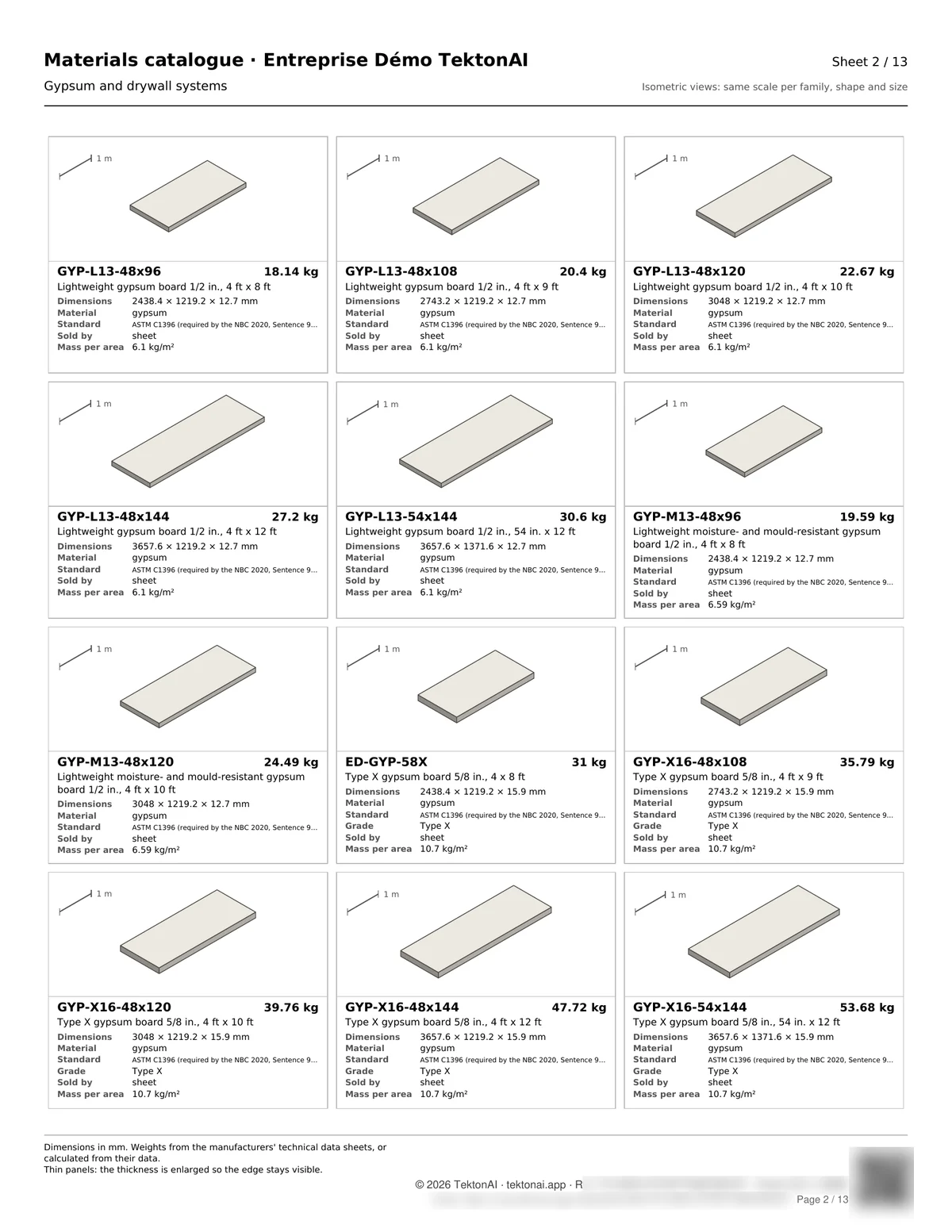
The PDF has 12 boxes per sheet. The Excel file gives one row per item, for a spreadsheet.
Tip: The download links are valid for 1 hour. Save the files right away, or ask for the catalogue again later.
It worked when: You have the PDF and Excel catalogue, with the number of items announced.
Step 4: verify the catalogue
Each page of the catalogue carries a reference and a QR code. The QR code opens TektonAI’s verification page. It says whether the catalogue is authentic and whether the file received is identical to the original. See Verify a plan.
It worked when: The verification page shows the catalogue's reference as authentic.
Special cases
- Nothing matches your search: try the product name, for example “Type X gypsum”, or fewer words.
- A weight is empty: no data sheet consulted gives it, and Materials does not estimate it. Use the one on the supplier’s data sheet.
- You want one family only: ask for the catalogue without “with its accessories”.
- You work in French: write your request in French, or set the language of your profile. The catalogue then comes out in French.
- Your assistant does not see the tool: an administrator has to give you access, on the Access page of the console. See Your team in TektonAI.
Good to know
- Dimensions are actual sizes, in mm. Imperial sizes (5/8 in., 4 ft × 8 ft) appear in the description.
- Materials gives no prices. In an imported list, price columns are flagged but never imported.
Download the files of this example
The real files the tool produced for this example. They are preliminary and serve as an example.
Catalogue of gypsum and its accessories
The catalogue from step 3: 127 items. The QR code on the PDF opens its verification page.