 TektonAI
Get started with TektonAI and set it up for your company
From the invitation to your first plan in your company's name: workspace, team, Claude, logo, parts and default settings.
This tutorial follows a company’s first days with TektonAI. You will:
- open your company’s workspace;
- invite your team;
- add TektonAI to Claude;
- create a TektonAI project;
- set up our tools so every plan comes out in your company’s name, with your parts and your habits.
Allow about twenty minutes, plus the time to import your parts list.
Step 1: join your company’s workspace
After your price request, we create your company’s workspace and send you an invitation.
This workspace is reserved for your company:
- your team finds its tools, connections, members and subscription there;
- no other company has access to it.
To get in:
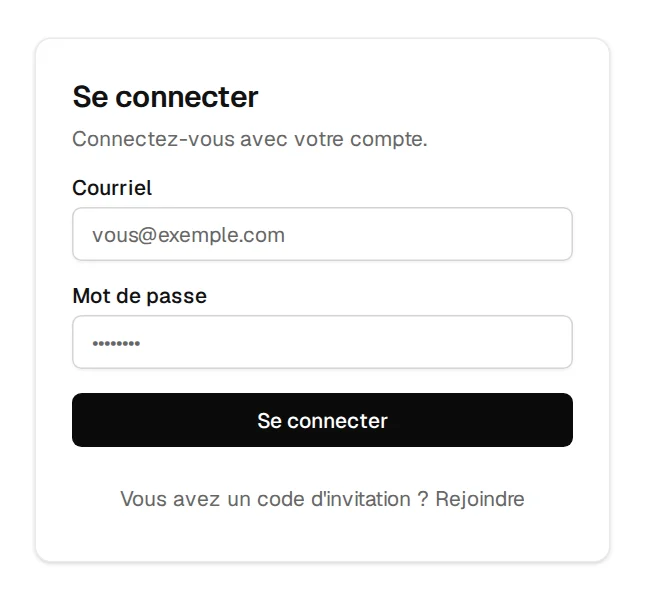
- Open mcp.tektonai.app.
- Depending on what you received:
- an invitation link: open it;
- a code: click Rejoindre (Join), then enter the code;
- an email and a password: sign in with them.
Step 2: invite your team
One subscription covers the whole company. To add a colleague, an administrator follows these steps:
- Open your workspace’s Members page.
- Choose the role:
- “member”: the person uses the tools;
- “admin”: the person also manages members.
- Click “Create a link”.
- Send this invite link to the person. It is valid for 7 days.
The Access page is where you choose who can use each tool. See Members and access.
Keep at least two administrators. That way, a departure or a vacation doesn’t block anyone.
Step 3: add TektonAI to Claude
Each member does this once, in their own Claude:
- In Claude, open Settings, then Connectors.
- Click Add custom connector.
- Paste your company’s address:
https://mcp.tektonai.app/<your-company>/mcp. You will find it on the console’s home page, in the “Connect claude.ai or Claude Desktop” card. The Copy button copies it for you. - Click Connect, then sign in with your TektonAI account.
- Open a new conversation.
Other cases:
- On a Claude Team or Enterprise plan, the organization owner adds the connector, in the organization settings. Each member then clicks Connect.
- In Claude Code, one command does it:
claude mcp add --transport http tektonai https://mcp.tektonai.app/<your-company>/mcp. - For another assistant, see Connect your AI assistant.
To check that TektonAI was added, ask:
Which TektonAI tools are available in this conversation?
In the company’s first conversation, Claude welcomes you to TektonAI. It then asks the profile questions:
- the company name to print on plans;
- its line of work;
- its contact details;
- your RBQ licence number (Régie du bâtiment du Québec), if you have one;
- your language.
Claude saves your answers as it goes. You can skip a question. An administrator can also fill in this profile in the console, on the Company profile page.
Step 4: create a TektonAI project
A project keeps instructions that apply to all of its conversations. Create a project for TektonAI. In every conversation, your assistant will then know what our tools do and how you work. You won’t have to repeat it.
In Claude (tested)
- In Claude’s left sidebar, open Projects, then Create project. Give it a name, for example “TektonAI”.
- In the project, open the project instructions. Paste the text below, then replace the parts in square brackets.
- Open a conversation in this project. In the conversation’s tools menu, check that TektonAI is turned on.
On a Claude Team or Enterprise plan, share the project with your colleagues: everyone starts from the same instructions. On other plans, each member creates their own project with the same text.
In ChatGPT (not tested): first add TektonAI to ChatGPT (see Connect your AI assistant). Then create a project and paste the text into its instructions.
In Claude Code: paste the text into the CLAUDE.md file of the folder you work in.
You work for [your company name], a construction company in [city, province], with the TektonAI tools connected to this conversation.

What the TektonAI tools do:
- Scaffold prepares 3D scaffold plans from the dimensions of the structure: dimensioned A3 PDF plan, CAD plan (DXF), 3D model (STEP), bill of materials in Excel and CSV, and the load takedown. It revises an existing plan from its drawing number.
- Inventory keeps track of everything our company owns: quantities available, rented out, in for repair and out of service, by location, and every movement with the employee's name. It imports our parts list and reads barcodes.
- Scaffold plans use the parts of our Inventory when we ask.
- Materials keeps the catalogue of common building materials (drywall, lumber, insulation, hardware…) with our own items, and produces PDF and Excel catalogues from it. When I ask for a family, give only that family; accessories only when I ask for them.

How to work with me:
- Answer in English, in plain words and site terms. Produce documents (plans, calculation notes, labels, slips) in English.
- Use the TektonAI tools for every plan, quantity or weight. Never make up a dimension, a quantity or a weight.
- Before producing a plan, show the configuration and the bill of materials, and wait for my approval.
- When a tool asks me a question through a form, let me answer it myself. Never choose the duty class (light, intermediate or heavy) for me.
- Leave plans at the “PRÉLIMINAIRE” (preliminary) status until I give you the names of the person who checked the plan and the person who approved it.
- For an import into Inventory, show the preview, let me choose the mode and wait for my confirmation: a click on the card, or the word “Import” that I type myself. Pass my message on exactly as I wrote it.
- Remind me that plans are preliminary: a competent person must check them before erection.
The same text is also at tektonai.app/en/project-instructions.md. Do all the following steps in a conversation in this project.
Step 5: put your logo in the title block
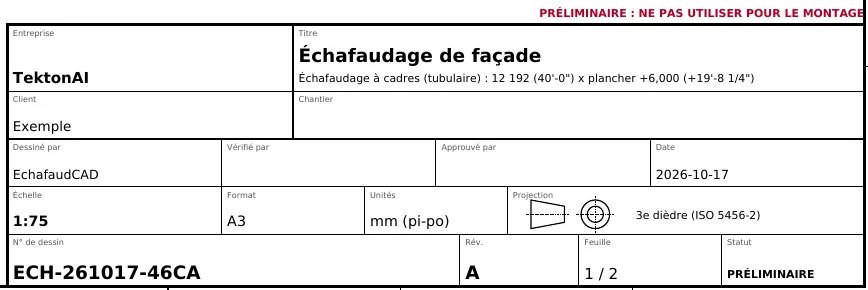
The title block of every plan shows:
- the company name;
- the client and the site;
- who drew, checked and approved the plan;
- the drawing number and the plan’s status.
You can add your logo to it. Do it once for the whole company:
Save our company logo for the title block of our plans: https://www.example.com/logo.png
The address must start with https:// and lead to a PNG, JPEG, WEBP or GIF image. The image must be 3 MB or less. The logo belongs to your company’s workspace, so it is used for all your colleagues.
You have the file but no web address? Ask:
Give me a link to upload our logo.
Claude gives you the link to an upload page. This link is valid for one hour.
Step 6: bring your parts into the plans
By default, Scaffold · Échafaud counts generic pieces, with average weights. With your company’s parts:
- the bill of materials uses your part numbers and weights;
- the bays follow the lengths of your stock.
Load your parts list yourself, in your conversation with Claude. The list goes into Inventory · Remise, your company’s inventory. Other companies cannot see it.
- You have an Excel or CSV spreadsheet. Ask:
I want to import my inventory.
You get an upload link, valid for one hour. The file can be up to 5 MB and 50,000 lines. Upload the file, then tell Claude in the conversation. Claude then shows you the recognized columns and the first 10 rows.
- You have a manufacturer’s PDF, a photo or a list. Give it to Claude in the conversation. Claude reads the parts and shows you what it read.
Claude then asks what to do with the parts already in the inventory. The preview shows the effect of each choice:
- nouvelles (new only): only the new parts go in;
- ajouter (add): the quantities are added to stock, as for a delivery received;
- mettre à jour (update): the parts in the list take the list’s quantities, as for a count;
- remplacer (replace): a full count. Parts missing from the list go back to 0.
For a first list, choose “nouvelles”.
Once the mode is chosen, Inventory shows you a summary of the import. Confirm it in one of these ways:
- click “Importer” (Import) on the “Importer / Annuler” (Import / Cancel) card, if your app shows it;
- otherwise, type “Import” (or “Approve the import”) in the conversation.
A vague answer, such as “yes”, is refused. Nothing goes into the inventory before you confirm.
On claude.ai, the card appears in the conversation. If it does not, open a new conversation or type “Import”.
What your file provides is kept as is. For the rest:
- Inventory fills in the category and the dimensions from the description. For example, “Plank 8’” gives the Planchers category (platforms) and 2,438 mm. The record says so: “Category and dimensions deduced from the description.”
- If something is still missing, such as the weight, Claude asks you for it after the import.
- No import deletes a part or a movement.
Then check the list:
Show me our company's parts list, with each part number, dimensions and weight.
Then ask for your plans with your parts:
Prepare this plan with our company's parts.
If a part is missing from your list, it stays generic in the bill of materials, marked “Hors catalogue” (not in catalogue). Add it to your inventory.
Step 7: add your habits to the project
Add your default settings at the end of the project instructions (step 4). Adapt them to your company:
Our default settings for Scaffold plans, unless the conversation says otherwise:
- company: Example Construction Inc.
- parts: our company's parts
- system: multidirectional
- sector: building
- duty class: light (1.2 kPa) for our usual work, heavy (3.6 kPa) for masonry
- a platform at every level
- plan dimensions in mm and feet-inches
- drawn by: the name of the person talking to you; ask for it if you don't know it
A plan moves to the “APPROUVÉ POUR MONTAGE” (approved for erection) status only with two names: the person who checked it and the person who approved it. Without these names, Scaffold refuses this status.
Step 8: your first plan
In the project, a short description is now enough:
Scaffold plan for the façade at 245 Example Street, client Example Management: 18 m façade, highest platform 9 m above the ground.
To go further, the tutorial How to create an accurate 3D scaffold plan shows each step with a real result.
Starting checklist
- Workspace joined on mcp.tektonai.app
- Colleagues invited, with at least two administrators
- TektonAI added to each member’s Claude
- Company profile filled in
- TektonAI project created, with the instructions
- Logo saved
- Parts list imported and checked
- Default settings added to the project
A question during setup? Email us at info@tektonai.app.