 TektonAI
Fencing a simple perimeter: enclose a construction site
Give the site's perimeter: Fencing draws the fence, counts the parts, calculates the ballast against the wind and points out the missing gate.
Your situation is different? Fencing around a scaffold: clearance, gate and public walkway
What you will get
The plan of your site's fence: the plan view, the bill of materials, the ballast needed against the wind and the accesses to plan.
Before you start: create a TektonAI projectThe instructions to paste into Claude or ChatGPT, once and for all.
A project keeps instructions that apply to all its conversations. Create one for TektonAI: in every conversation, your assistant knows what our tools do and how you work, without you repeating it.
In Claude (tested)
- In Claude's left sidebar, open Projects, then Create project. Name it, for example “TektonAI”.
- In the project, open the project instructions and paste the text below. Replace the parts in brackets.
- Open a conversation in this project. In the conversation's tools menu, check that TektonAI is turned on.
On a Claude Team or Enterprise plan, share the project with your colleagues: they all start from the same instructions.
In ChatGPT (not tested)
- In ChatGPT's left sidebar, create a new project.
- In the project settings, paste the text below into its instructions.
TektonAI must first be added to ChatGPT: see Connect your AI assistant.
In Claude Code
Paste the text into the CLAUDE.md file of the folder you work in.
The instructions to paste
You work for [your company name], a construction company in [city, province], with the TektonAI tools connected to this conversation.

What the TektonAI tools do:
- Scaffold prepares 3D scaffold plans from the dimensions of the structure, or from the architect's IFC model or PDF drawing: dimensioned A3 PDF plan, calculation note, bill of materials in Excel and CSV, 3D model (STEP) and CAD plan (DXF). It revises an existing plan from its drawing number.
- Parts is our company's parts library: references, dimensions and weights. It imports our parts list.
- Scaffold plans use the parts of our Parts library when we ask.
- Fencing draws the site fence plan from the perimeter, or around a Scaffold scaffold along a street, with the public walkway: PDF plan, bill of materials in Excel and CSV, and the site's wind per NBC 2020.
- Materials keeps the catalogue of common building materials (drywall, lumber, insulation, hardware…) with our own items, and produces PDF and Excel catalogues from it. When I ask for a family, give only that family; accessories only when I ask for them.

How to work with me:
- Answer in English, in plain words and site terms. Produce documents (plans, calculation notes, catalogues) in English.
- Use the TektonAI tools for every plan, quantity or weight. Never make up a dimension, a quantity or a weight.
- Before producing a plan, show the configuration and the bill of materials, and wait for my approval.
- When a tool asks me a question through a form, let me answer it myself. Never choose the duty class (light, intermediate or heavy) for me.
- Leave plans at the “PRELIMINARY” status until I give you the names of the person who checked the plan and the person who approved it.
- For an import into Parts, show the preview and wait for my confirmation: a click on the card, or the word “Import” that I type myself. Pass my message on exactly as I wrote it.
- Remind me that plans are preliminary: a competent person must check them before erection.
The same text is also at tektonai.app/en/project-instructions.md.
A construction site is often fenced before anything else. This tutorial shows how to get the plan of that fence with Fencing · Palissade, from the site’s perimeter alone, without a scaffold plan.
Julie Exemple, of Entreprise Démo TektonAI, is fencing a 40 m x 25 m rectangular site in Montréal. She has not decided yet where the entrance goes: the plan will remind her.
What you need
- The dimensions of the site, or its corners in order if it is not rectangular.
- The panel type: mesh or other.
- Your fences in your Parts · Remise library, if you have any. Without them, Fencing uses generic parts.
Step 1: describe the perimeter
Open a conversation in your TektonAI project:
Prepare the fence of a 40 m x 25 m rectangular site in Montréal, with mesh panels, using the fences in our library.
It worked when: Fencing answers with a form of questions.
Step 2: answer the questions
Before drawing, Fencing asks 5 questions:
- Is the site at the top or on the slope of a hill, ridge or escarpment?
- Importance category of the fence for wind (factor Iw, NBC 2020, Table 4.1.7.3)?
- The company’s library has panels of several heights: which fence height?
- The company’s library has several parts for the role “base”: which one should be used?
- The company’s library has several parts for the role “stay”: which one should be used?
Julie answers in the form:
- the site is not on a hill, ridge or escarpment;
- the importance category is normal;
- a 1829 mm (6 ft) fence;
- base DEMO-CLO-BASE and stay DEMO-CLO-CTF.
It worked when: Fencing answers with a plan whose number starts with CLO-.
Step 3: read the plan
Plan CLO-261023-431B, revision A (PRELIMINARY)
Fence 1.83 m (6’-0”) high in mesh panels, closed perimeter, in 4 segments: perimeter of 130.00 m (426’-6”), 130.00 m (426’-6”) fenced in 4 runs. 46 panels, 54 bases, 0 gates. Parts from the Entreprise Démo TektonAI parts library, the others generic. Site wind: q1/50 = 0.44 kPa (Montréal (City Hall), QC).
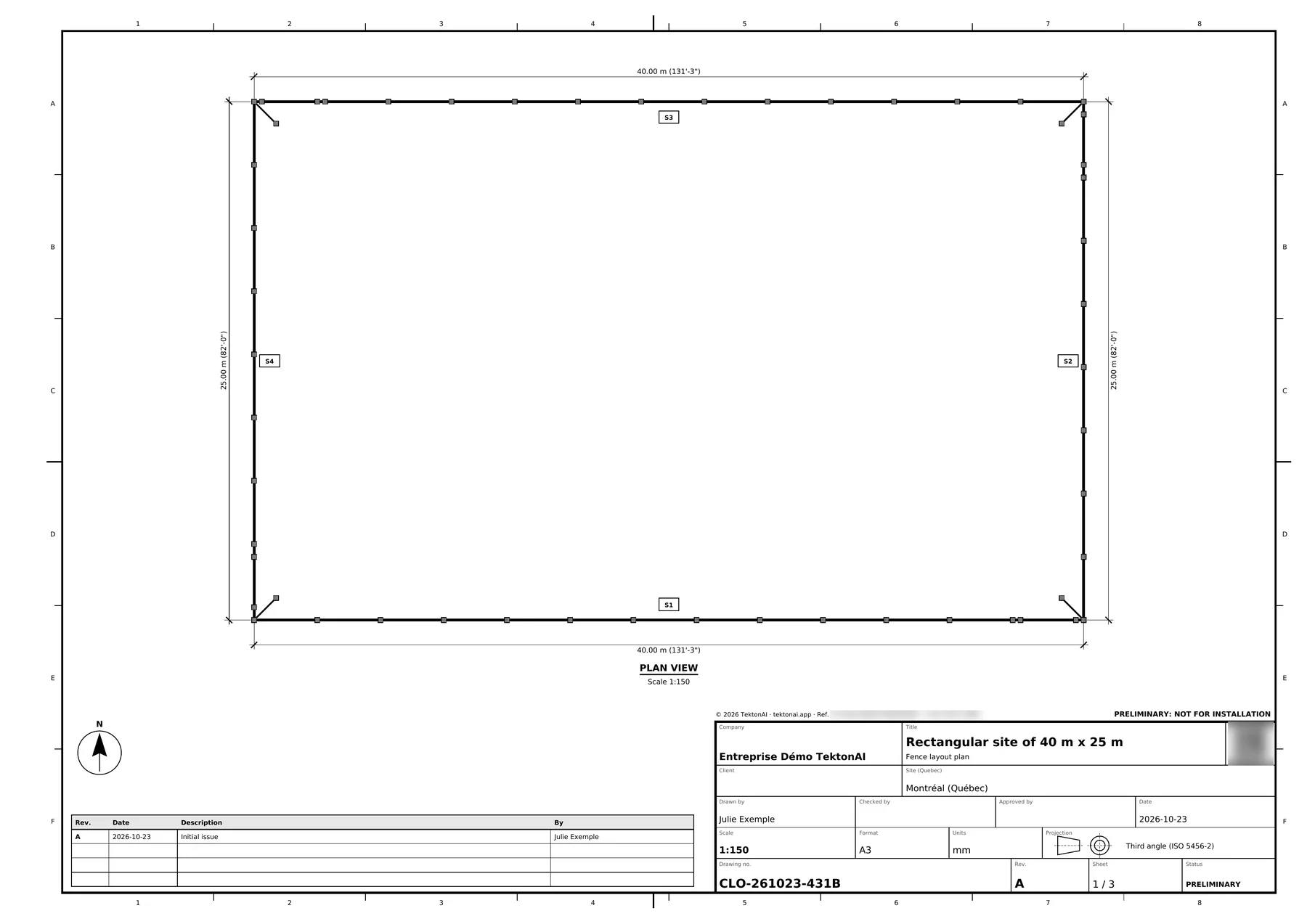
The bill of materials counts every part:
- 46 mesh panels of 6 ft x 10 ft, 4 of them overlapping;
- 54 concrete bases;
- 54 fence clamps, marked “Not in Entreprise Démo TektonAI catalogue”;
- 4 stays, one at each corner.
No panel is cut: on each side, the last panel overlaps the one before.
It worked when: You have the PDF plan and the bill of materials, with your part numbers.
Step 4: read the points to note
Under the summary, Fencing lists three points:
- OVERTURNING: under the site wind, the overturning moment of a typical panel (1.21 kN·m) exceeds the resisting moment of its bases (0.14 kN·m). Add ballast or intermediate stays before installation.
- For the fence to stand under the site wind: add 364 kg of ballast per base, or set a ballasted stay at every panel, fixed to the panel and to its base, with 214 kg of ballast per base. Conservative calculation (50-year wind, NBC 2020): a competent person checks it before installation.
- No gate and no entrance: how do workers and vehicles get in? Add a pedestrian or vehicle gate, or say how the site is reached.
The last point comes from Julie’s request: she described a closed perimeter, with no gate. The plan says so plainly, in the answer and on sheet 2 of the PDF.

Answer in the conversation, as the plan asks: add a pedestrian or vehicle gate, with its width and the side where it goes, or say how the site is reached.
Watch out: Do not install the fence without the ballast shown. A competent person checks the calculation before installation.
It worked when: You know what ballast to plan and how workers and vehicles will get in.
Step 5: verify the plan
Each PDF carries a reference and a QR code. The QR code opens TektonAI’s verification page. It says whether the plan is authentic, who issued it and when. See Verify a plan.
It worked when: The verification page shows the plan's reference as authentic.
Special cases
- Your site is not rectangular: give its corners in order, with their distances.
- The fence runs along a scaffold: start from the Scaffold plan. See Fencing around a scaffold.
- You have no fences in your library: Fencing uses generic parts and does not ask about the height, the base and the stay.
- You work in French: write your request in French, or set the language of your profile. The plan then comes out in French.
- Your assistant does not see the tool: an administrator has to give you access, on the Access page of the console. See Your team in TektonAI.
Good to know
- The plan stays preliminary. It says so itself: “This plan is not approved for installation: it is for preparing the fence and having it checked.”
- Fencing gives no prices.
Download the files of this example
The real files the tool produced for this example. They are preliminary and serve as an example.
Plan CLO-261023-431B, revision A
The plan from step 3: 130 m of fence, 46 panels, 54 bases, no gate. The QR code on each PDF opens its verification page.