 TektonAI
Start from a screenshot of the drawing
You only have a screenshot of the drawing: your assistant reads the dimensions, you confirm them, then Scaffold draws the scaffold.
Your situation is different? Architectural drawings: from the PDF drawings only · How to create an accurate 3D scaffold plan with TektonAI
What you will get
A scaffold plan made from a screenshot, with the dimensions you confirmed. The plan says where those dimensions come from.
Before you start: create a TektonAI projectThe instructions to paste into Claude or ChatGPT, once and for all.
A project keeps instructions that apply to all its conversations. Create one for TektonAI: in every conversation, your assistant knows what our tools do and how you work, without you repeating it.
In Claude (tested)
- In Claude's left sidebar, open Projects, then Create project. Name it, for example “TektonAI”.
- In the project, open the project instructions and paste the text below. Replace the parts in brackets.
- Open a conversation in this project. In the conversation's tools menu, check that TektonAI is turned on.
On a Claude Team or Enterprise plan, share the project with your colleagues: they all start from the same instructions.
In ChatGPT (not tested)
- In ChatGPT's left sidebar, create a new project.
- In the project settings, paste the text below into its instructions.
TektonAI must first be added to ChatGPT: see Connect your AI assistant.
In Claude Code
Paste the text into the CLAUDE.md file of the folder you work in.
The instructions to paste
You work for [your company name], a construction company in [city, province], with the TektonAI tools connected to this conversation.

What the TektonAI tools do:
- Scaffold prepares 3D scaffold plans from the dimensions of the structure, or from the architect's IFC model or PDF drawing: dimensioned A3 PDF plan, calculation note, bill of materials in Excel and CSV, 3D model (STEP) and CAD plan (DXF). It revises an existing plan from its drawing number.
- Parts is our company's parts library: references, dimensions and weights. It imports our parts list.
- Scaffold plans use the parts of our Parts library when we ask.
- Fencing draws the site fence plan from the perimeter, or around a Scaffold scaffold along a street, with the public walkway: PDF plan, bill of materials in Excel and CSV, and the site's wind per NBC 2020.
- Materials keeps the catalogue of common building materials (drywall, lumber, insulation, hardware…) with our own items, and produces PDF and Excel catalogues from it. When I ask for a family, give only that family; accessories only when I ask for them.

How to work with me:
- Answer in English, in plain words and site terms. Produce documents (plans, calculation notes, catalogues) in English.
- Use the TektonAI tools for every plan, quantity or weight. Never make up a dimension, a quantity or a weight.
- Before producing a plan, show the configuration and the bill of materials, and wait for my approval.
- When a tool asks me a question through a form, let me answer it myself. Never choose the duty class (light, intermediate or heavy) for me.
- Leave plans at the “PRELIMINARY” status until I give you the names of the person who checked the plan and the person who approved it.
- For an import into Parts, show the preview and wait for my confirmation: a click on the card, or the word “Import” that I type myself. Pass my message on exactly as I wrote it.
- Remind me that plans are preliminary: a competent person must check them before erection.
The same text is also at tektonai.app/en/project-instructions.md.
Sometimes all you have is a screenshot of a drawing: an image received by email or taken on a screen. Your AI assistant can read dimensions on it, but it can also misread a digit. This tutorial shows how to have every dimension confirmed before you ask for the plan.
Your assistant reads the image, not Scaffold. How well it reads depends on the assistant you use: see What depends on your AI assistant.
What you need
- A sharp screenshot of the façade elevation, with its dimensions and levels.
- The height of the top platform, the distance from the wall and the duty class of the scaffold.
If you have the architect’s PDF, use it instead: see Architectural drawings: from the PDF drawings only.
Step 1: take a good screenshot
- The whole façade on one image, with the overall dimension chain.
- The floor and roof levels, not cut off.
- A sharp image, large enough to read every digit.
- A direct screenshot, not a photo of the screen taken at an angle.
Here is the screenshot from Julie Exemple, of Entreprise Démo TektonAI: the south elevation of a three-storey sixplex. The levels on the right are slightly cut off. The example drawings on this site stay in French.
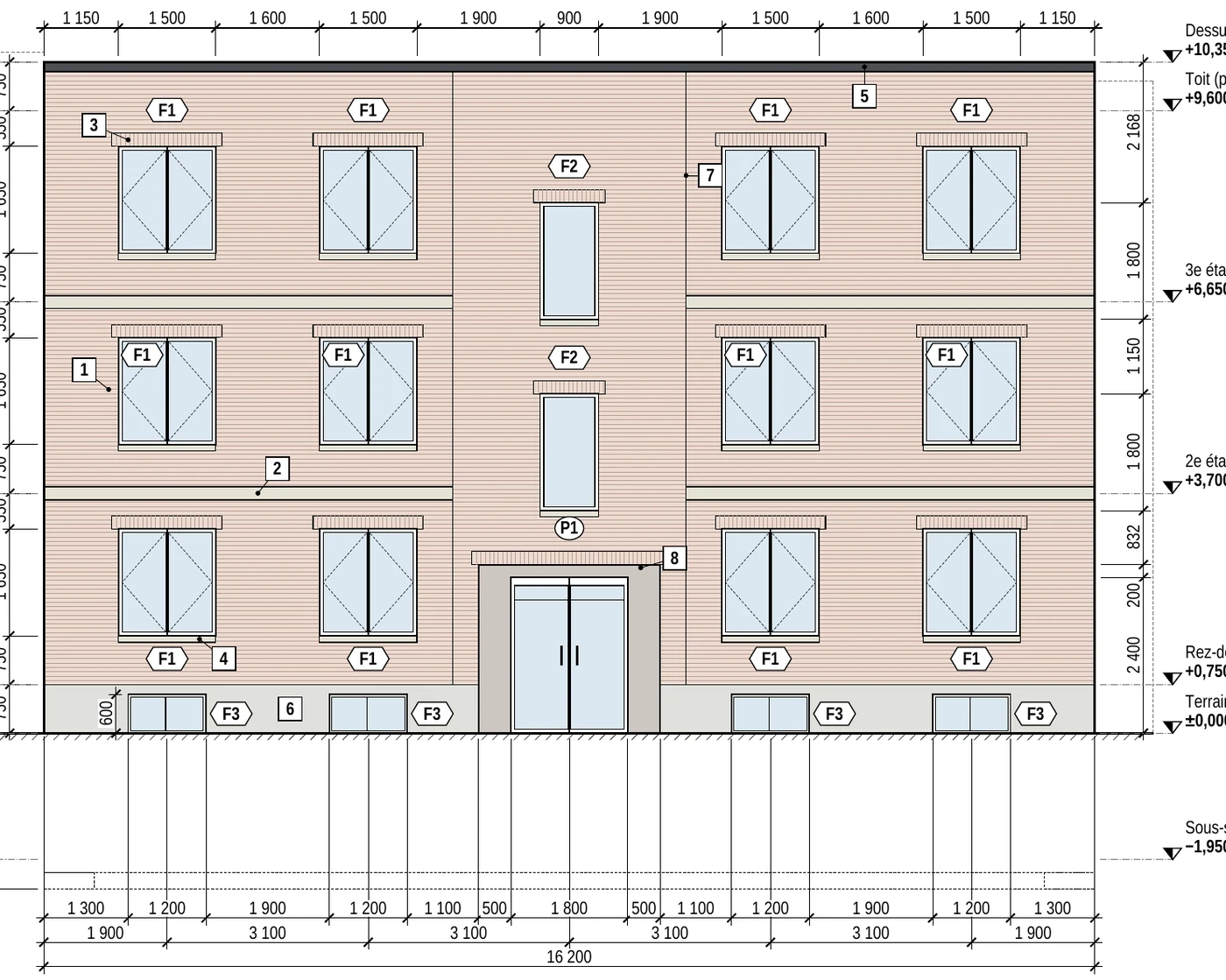
It worked when: You can read the façade length and the levels on the screenshot yourself.
Step 2: send the screenshot
Attach the screenshot to your message. Ask your assistant to say where it read each dimension:
Here is a screenshot of the sixplex's south elevation. Read the length of the façade and the height of the parapet, and tell me where you read them.
Your assistant answers with the dimensions it read. For example:
Legible dimensions: total façade length 16,200 mm (bottom chain); top chain 1,150, 1,500, 1,600, 1,500, 1,900, 900, 1,900, 1,500, 1,600, 1,500, 1,150 (sum 16,200); levels on the right: top of parapet +10.35 (last digit cut), roof +9.600, 3rd floor +6.650, 2nd floor +3.700, ground floor +0.750, finished grade ±0.00. Cut off: the left-hand levels, the title block, the scale and the revision. To repeat: façade 16.2 m, parapet at +10.35 m. Do you confirm?
It worked when: Your assistant gives each dimension, where it read it and what is cut off on the image.
Step 3: confirm the dimensions
Compare each dimension with the screenshot, digit by digit. Here, the top chain adds up to 16,200 mm, like the bottom chain. The top of the parapet is cut off on the image: Julie knows the value and confirms it.
Yes: the façade is 16.2 m long and the top of the parapet is at +10.35 m.
Watch out: Do not confirm a dimension you cannot see on the image. Measure it on site or read it on the original drawing.
It worked when: You have confirmed every dimension the plan will use.
Step 4: ask for the plan
Make the scaffold plan for this façade, frame scaffold, top platform at 8.85 m, 300 mm from the wall, light duty, in Montréal.
Scaffold produces the plan in about thirty seconds:
Drawing ECH-261023-F506, revision A (preliminary)
Frame scaffold (tubular)
- 16 764 x platform +8.850; bays 5 x 3048 + 1524; platform +8.850; top +9.917
- Total: 304 parts, 2314 kg (indicative weights)
To cover the 16.2 m (53’-2”) façade, Scaffold uses 5 bays of 10 ft and one of 5 ft: 16,764 mm (55’-0”).
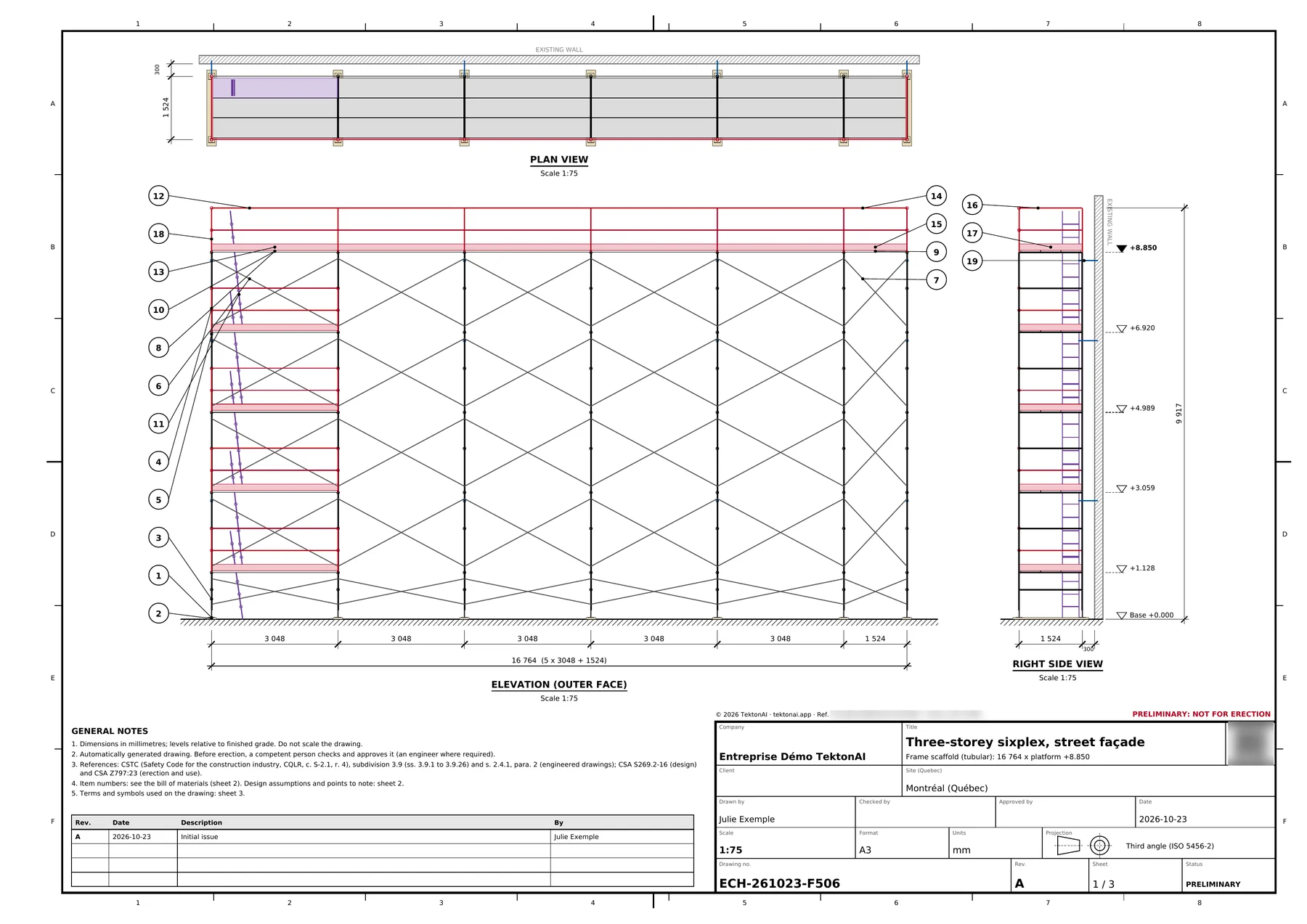
The plan says where the dimensions come from. Its assumptions carry the line:
Dimensions read from a screenshot by the assistant and confirmed by the user.
Anyone reading the plan knows that the dimensions do not come from an architect’s drawing.
It worked when: The plan carries the line "Dimensions read from a screenshot by the assistant and confirmed by the user."
Step 5: read what the plan does not check
The plan says what it could not check, for lack of information:
- Working platforms at intermediate levels not provided: extent of the work not given; working platform at the top level only.
- Indicative wind not calculated: site relief and importance category not provided (NBC 2020, Article 4.1.7.4 and Table 4.1.7.3).
- Soil bearing capacity not checked: soil report not provided.
- Capacity of standards, screw jacks or casters and ties not checked: manufacturer data sheet not provided.
With the plan, Scaffold sends a form with 7 optional questions, one per missing check. Answer when you have the information: the next revision makes the check. See Revise a plan and track its versions.
It worked when: You know which checks remain, and who does them.
Special cases
- The screenshot is blurry or cut off: take it again, whole and sharp, before going further.
- A dimension is illegible or cut off: give it yourself, measured on site or read on the original drawing.
- Two dimension chains do not add up to the same total: confirm nothing. Ask your assistant to read again, or check the original drawing.
- You have the architect’s PDF or model: start from that file rather than a screenshot. See Architectural drawings: from the IFC model.
- Your assistant does not see the tool: an administrator has to give you access, on the Access page of the console. See Your team in TektonAI.
Good to know
- A dimension read from a screenshot comes from your assistant and your confirmation, not from the architect.
- The plan stays preliminary: a competent person checks and approves it before erection.
Download the files of this example
The real files the tool produced for this example. They are preliminary and serve as an example.
Plan ECH-261023-F506, revision A
The plan from step 4: 16.2 m façade, platform at 8.85 m, 304 parts, 2,314 kg. The QR code on each PDF opens its verification page.
- PDFA3 PDF planECH-261023-F506_revA_plan.pdf · 125 kB
- PDFCalculation note (PDF)ECH-261023-F506_revA_note_calcul.pdf · 70 kB
- PDFPart codes (PDF)ECH-261023-F506_revA_codes.pdf · 55 kB
- XLSXBill of materials (Excel)ECH-261023-F506_nomenclature.xlsx · 9 kB
- CSVBill of materials (CSV)ECH-261023-F506_nomenclature.csv · 2 kB
- STEP3D model (STEP)ECH-261023-F506_modele.step · 10.2 MB
- IFCIFC modelECH-261023-F506_modele.ifc · 303 kB